Home › Docs › Addons › Studio Features

Studio Features
Free Choose per product which Design Studio tools shoppers get: text only, clipart only, no uploads, no Team Names, and so on.
Free, no license key needed. Works on WordPress / WooCommerce, OpenCart, PrestaShop 8 & 9 and Shopware 6.6 / 6.7 with Veyo 1.9.2 or later.
What Studio Features does
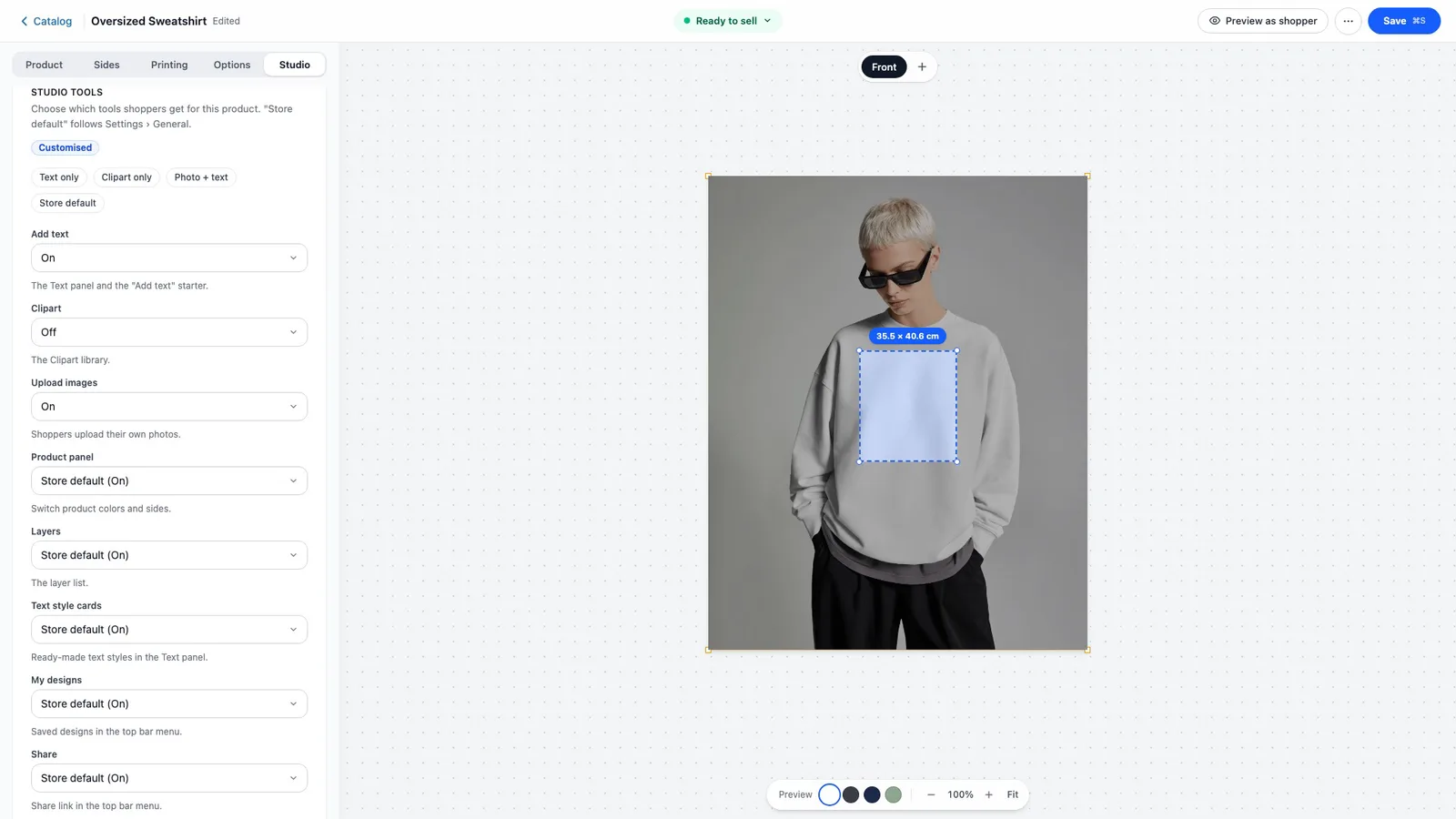
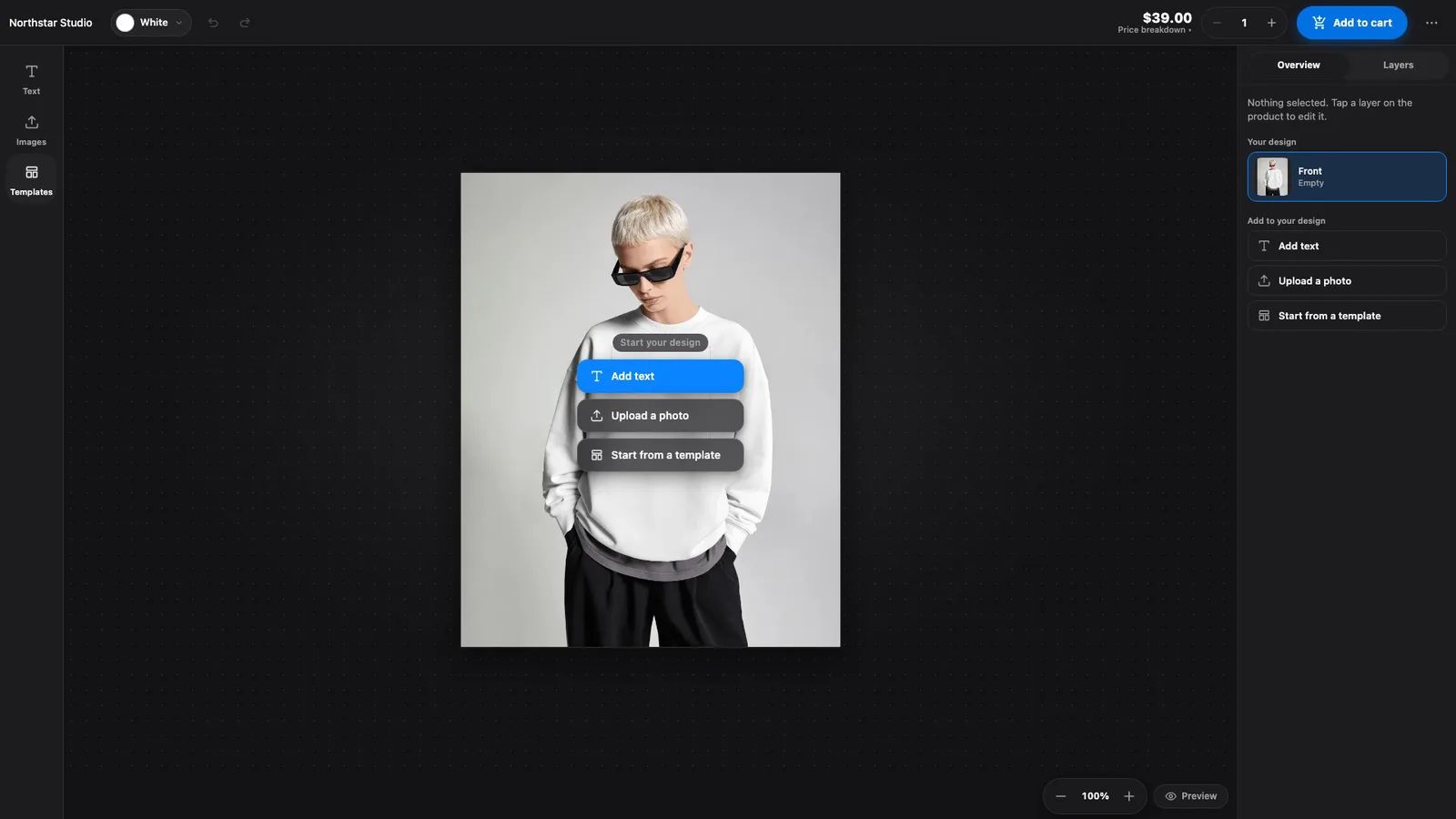
The Design Studio settings in Settings › General apply to every product. Some products need fewer tools: a name necklace only needs text, a sticker sheet only clipart, a team shirt no photo uploads. Studio Features adds a Studio tab to each catalog product where you choose the tools for that product alone.
Products you do not change keep the store-wide settings. Nothing is copied into them, so a later change in Settings still reaches them.
How to enable Studio Features
-
Install the addon (free)
Get the free Studio Features ZIP — no purchase or license key needed.
-
Upload it in the Veyo Apps screen
Open Veyo → Extensions and upload the ZIP. Veyo verifies the package and installs it.
-
Enable it and open a product
Toggle Studio Features on, edit a catalog product in Products and open the new Studio tab.
At a glance
| Version | 1.0.0 |
|---|---|
| Platforms | WordPress / WooCommerce, OpenCart, PrestaShop 8 & 9, and Shopware 6.6 / 6.7. |
| Requires | Veyo Product Personalizer 1.9.2 or later. No other addon is required. |
| Where settings live | Products › edit a product › Studio tab. |
| Server tools / outside services | None. |
Presets and tools
A preset fills in the choices below it in one click; only the choices are saved, not the preset.
- Text only, Clipart only and Photo + text turn the matching ways to add a design on and the others off. They also hide the panels of add-ons, which would otherwise add other tools.
- Store default clears everything, so the product follows Settings again.
Each tool can then be set to Store default (the label shows whether that is on or off), On or Off: Add text, Clipart, Upload images, Product panel, Layers, Text style cards, My designs, Share, Preview, and Undo and redo. A Customised label shows on products that differ from the store default.
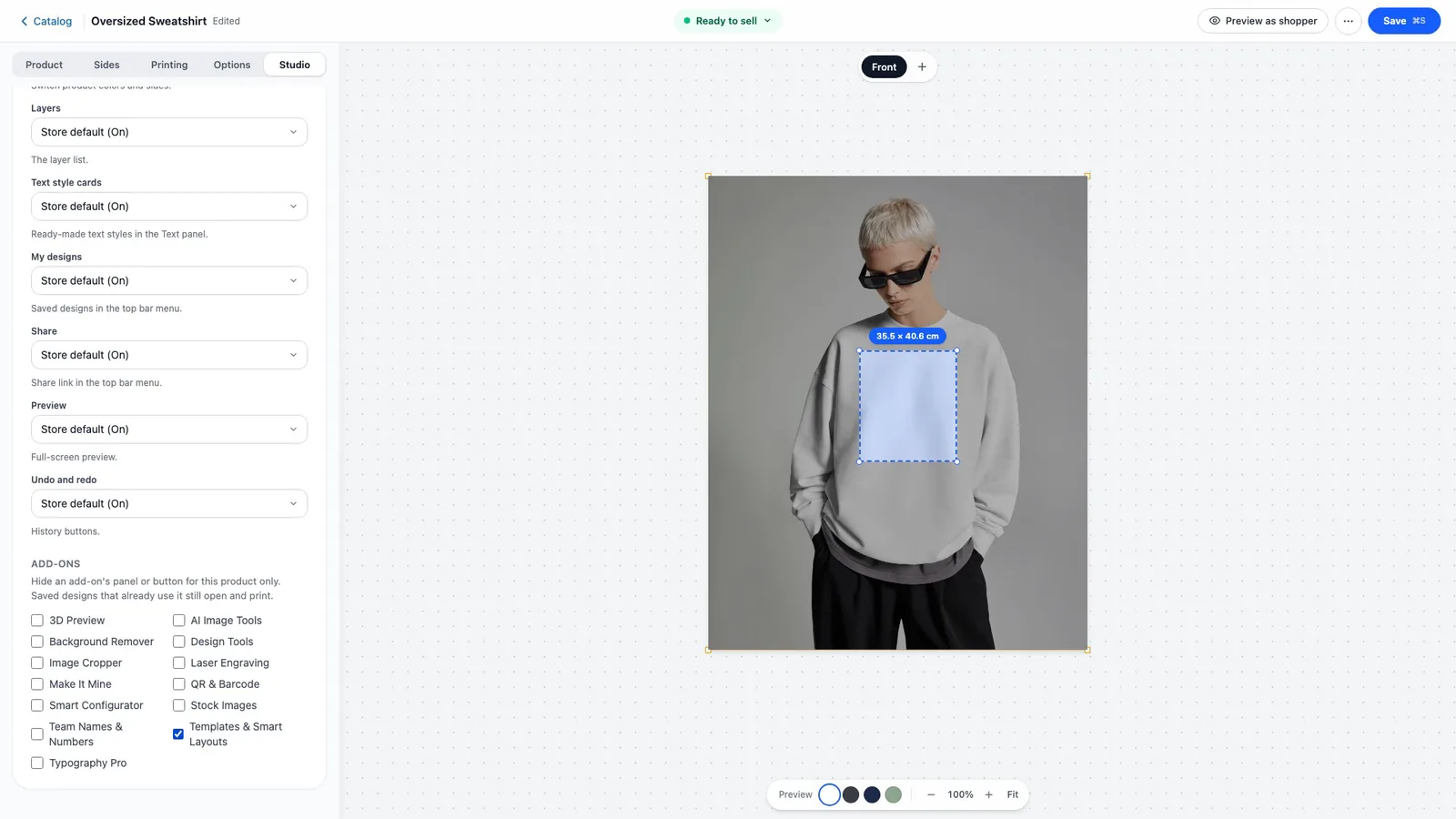
Add-ons on one product
Under Add-ons, every active add-on that adds a panel or button to the Studio is listed. A preset unticks them all; tick one to bring it back, or untick it to hide its panel or button on this product only, for example Team Names on a mug. The add-on stays active, and every other product keeps it.
Saved designs that already use a hidden add-on still open and print, and licensing is not changed.
Data and privacy
- Stored: the choices for each product, saved with that catalog product. Store-wide settings are never changed.
- Outside services: none.
- Turning the addon off returns every product to the store-wide settings. Turning it on again restores the choices.
FAQ
Does hiding an add-on deactivate it?
No. Only its panel or button is hidden in the Studio for that product. The add-on keeps running for the rest of the store, and designs that already use it still render.
What happens to products I never open in the Studio tab?
Nothing. They keep following Settings › General.
Installing, updating and removing
- Install: upload the ZIP in Extensions, then enable it. See Install addons.
- Update: upload the newer ZIP over the old one. Settings and data are kept. See Upgrading.
- Remove: Uninstall on the addon card removes its files and keeps its data, so reinstalling restores everything. See Uninstalling & your data.