Home › Docs › Addons › Background Remover

Background Remover
Free Remove backgrounds from uploaded images directly in the designer — no external service processes the customer's photo, and it is never sent to a third party.
Platforms: WooCommerce, OpenCart, PrestaShop & Shopware 6. Version: 1.1.4.
Every purchase is a single signed, install-ready ZIP that also includes full TypeScript/Vue source, sourcemaps, and build tooling (npm ci && npm run build) if you want to customize it yourself. Installs and updates through the in-app addon marketplace.
What Background Remover does
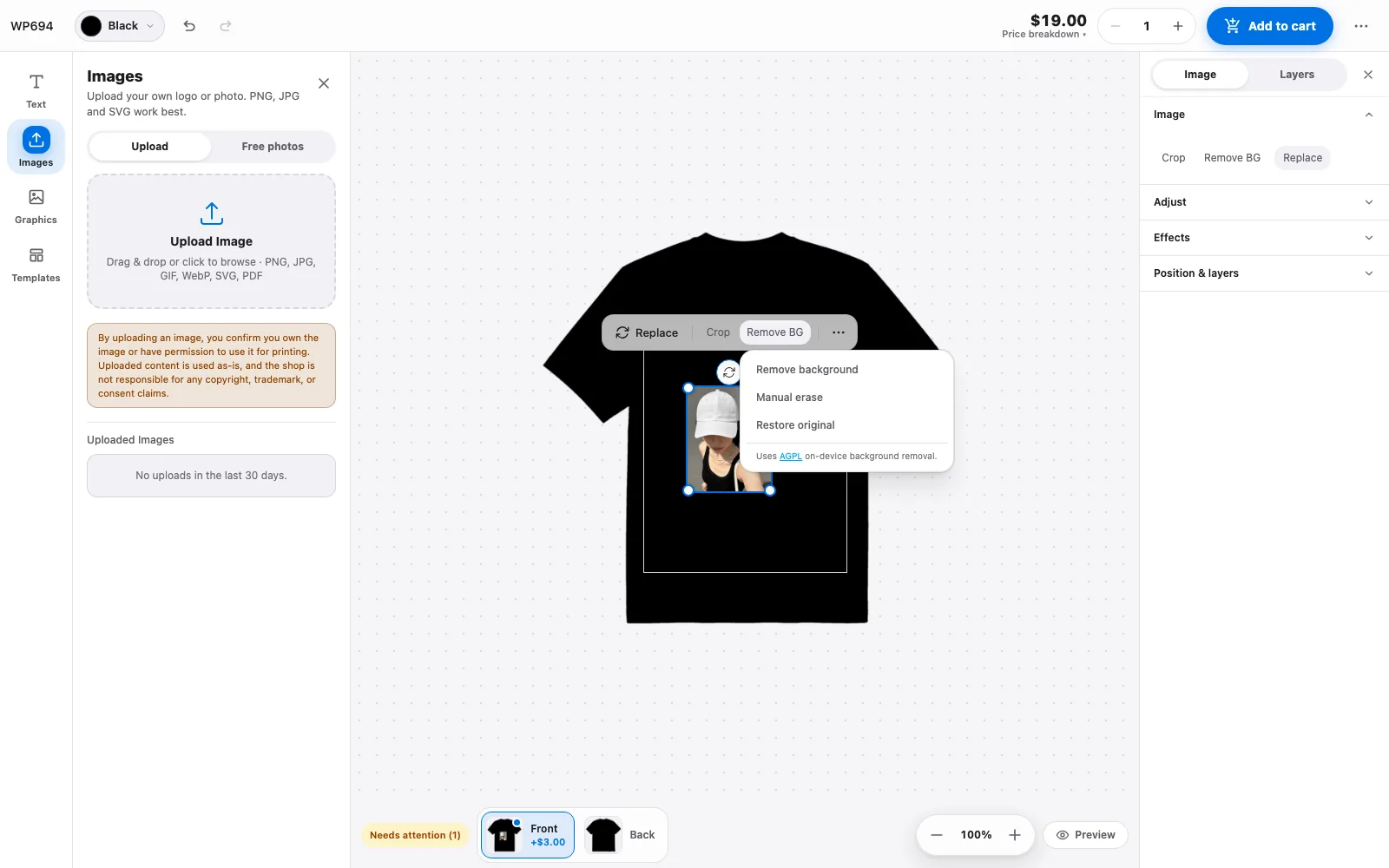
Background Remover adds a one-click Remove background action to the toolbar for any uploaded image in the Veyo product design editor for WooCommerce. It's aimed at shops whose customers upload phone photos, logos, or portraits with a plain or messy background that needs to disappear before printing.
Removal runs entirely in the customer's browser using a client-side machine-learning model — the image is never sent to an external API to process the cutout, which keeps it fast and keeps the original file private. The result replaces the visible background with transparency; the original upload is preserved underneath so the action can be undone at any time.
How to enable Background Remover
-
Buy the addon
Your Polar purchase email (and the Polar customer portal) contains the addon ZIP.
-
Upload it in the Veyo Apps screen
Open Veyo → Extensions and upload the ZIP. Veyo verifies the package and installs it.
-
Enable it
Toggle Background Remover on. No further configuration is needed — the action appears automatically for every uploaded image.
How to use Background Remover
-
Upload an image
The customer uploads a photo or logo as usual in the designer.
-
Select it and click "Remove background"
With the image layer selected, the Remove BG button in the image toolbar opens a menu. Choose Remove background and the cutout is processed right in the browser; the image shows a progress state while it runs.
-
Adjust or undo
Choose Restore original in the same menu to go back to the uploaded image, or use Manual erase to clean up what the automatic cutout missed. The result can also be combined with the other image tools (filters, crop) since the original file is kept.
At a glance
| Version | 1.1.4 |
|---|---|
| Platforms | WordPress + WooCommerce, OpenCart 3 & 4, PrestaShop 8 & 9, and Shopware 6.6 / 6.7 |
| Requires | Veyo Product Personalizer 1.0.1 or later (1.2.1 or later so shoppers can save the cut-out). No other addons. |
| Where settings live | No settings screen. It works automatically once the addon is active. |
| Server tools / outside services | No server tools. The shopper’s browser downloads the removal library and model from public CDNs on first use (see Data and privacy). |
What shoppers see
- Selecting an image layer shows a Remove BG button in the image toolbar. It opens a menu with Remove background, Manual erase and Restore original (the last one only after the image has been processed). A small note in the menu says it uses AGPL on-device background removal.
- While it runs the image is dimmed and shows Preparing AI model..., then Removing background..., then Saving transparent image.... The first run is the slowest because the model has to load.
- Manual erase lets the shopper paint away areas with a brush (size 8 to 80, default 28) and then press Apply, Cancel or Restore.
- For speed, the cutout is calculated from a copy whose longest side is at most 1536 pixels and then composed back onto the full-resolution image.
- If the automatic cutout fails, the shopper is dropped into manual erase with the message Use manual erase to finish this image.
- Results are cached in the shopper’s browser by image content, so removing the background of the same image again is instant.
Settings
There are no settings to configure and no admin screen. The addon always uses on-device removal; the provider options in its configuration file (VEYOP_BACKGROUND_REMOVER_PROVIDER defaults to client) are a placeholder for a possible server provider and are not used by this release.
What you get in orders and production
Nothing extra. The transparent PNG becomes the image layer of the design, so it goes into production files like any other image. See Orders & production files.
Data and privacy
- Shopper photo: processed in the browser and not sent to any background-removal service.
- Outside requests: on first use the browser loads the removal library from
cdn.jsdelivr.netand the model data fromstaticimgly.com. Your site’s Content Security Policy must allow them. These requests do not include the shopper’s image. - Stored on your server: the finished transparent PNG (and any manually erased PNG), saved through Veyo’s normal media upload so it belongs to the design. The addon creates no database tables or options of its own.
- Stored in the browser: a cache of results, in the browser’s IndexedDB.
- Uninstalling: removing the addon keeps its data. Uninstalling the whole of Veyo with Keep data when uninstalling off erases the Veyo tables and files, including saved designs. See Uninstalling & your data.
Troubleshooting
- It always falls back to manual erase. The library or model could not be loaded, often because a firewall, ad blocker or Content Security Policy blocks
cdn.jsdelivr.netorstaticimgly.com. - “Could not load image for manual erase”. The image file could not be loaded into the erase canvas. Check that the image URL opens in the browser and is served from your own store.
- “Upload failed” or “Save failed”. The cutout worked but saving it to your server did not. Check the upload limits and disk space on your host.
- The first removal is slow. The model is downloaded and loaded on first use, and the work happens on the shopper’s device, so older phones take longer.
- The tool does not appear. It only shows when an image layer is selected.
FAQ
Does this send my customers' photos anywhere?
No. Background removal runs on-device using a client-side model — the image data stays in the browser and is never uploaded to a third-party background-removal service. Only the finished transparent PNG is saved to your own store, the same way any upload is. The model files themselves are downloaded from public CDNs the first time they are needed; see Data and privacy below.
What license applies to the underlying library?
The client-side background-removal library this addon uses is distributed under AGPL-3.0. This only affects redistribution of that library's own source; it does not change the license of your shop or your customers' artwork.
Does it work on every image format?
It works on uploaded image layers (the tool only appears when an image is selected) and always saves the result as a transparent PNG. Vector clipart doesn't need background removal since it has no raster background to begin with.
Installing, updating and removing
- Install: upload the ZIP in Extensions, then enable it. See Install addons.
- Update: upload the newer ZIP over the old one. Settings and data are kept. See Upgrading.
- Remove: Uninstall on the addon card removes its files and keeps its data, so reinstalling restores everything. See Uninstalling & your data.