Home › Docs › Addons › Mask Images

Mask Images
$10 Per-view mask images that sit above catalog mockups and print areas.
Platforms: WooCommerce, OpenCart, PrestaShop & Shopware 6. Version: 1.2.5.
Every purchase is a single signed, install-ready ZIP that also includes full TypeScript/Vue source, sourcemaps, and build tooling (npm ci && npm run build) if you want to customize it yourself. Installs and updates through the in-app addon marketplace.
What Mask Images does
Mask Images adds a mask layer above the mockup and print area for each WooCommerce product view — built for products where part of the physical item (a pocket, a seam, packaging, a strap) overlaps the printed region and needs to stay visible on top of the design.
Admins upload one or more mask images per view; they render automatically above every customer's design for that view, with no customer-facing setup required.
How to enable Mask Images
-
Buy the addon
Your Polar purchase email (and the Polar customer portal) contains the addon ZIP.
-
Upload it in the Veyo Apps screen
Open Veyo → Extensions and upload the ZIP. Veyo verifies the package and installs it.
-
Enable it
Toggle Mask Images on, then add masks per view in the Veyo catalog product editor (Mask Images panel in the sides section).
How to use Mask Images
-
Prepare a mask image
Create a PNG, WebP or SVG with a transparent background of the overlapping garment/object detail (e.g. a pocket) for a given product view. Transparent areas let the design show through; opaque areas cover it. Export it at the same aspect ratio as the product photo so it lines up.
-
Upload it to the view
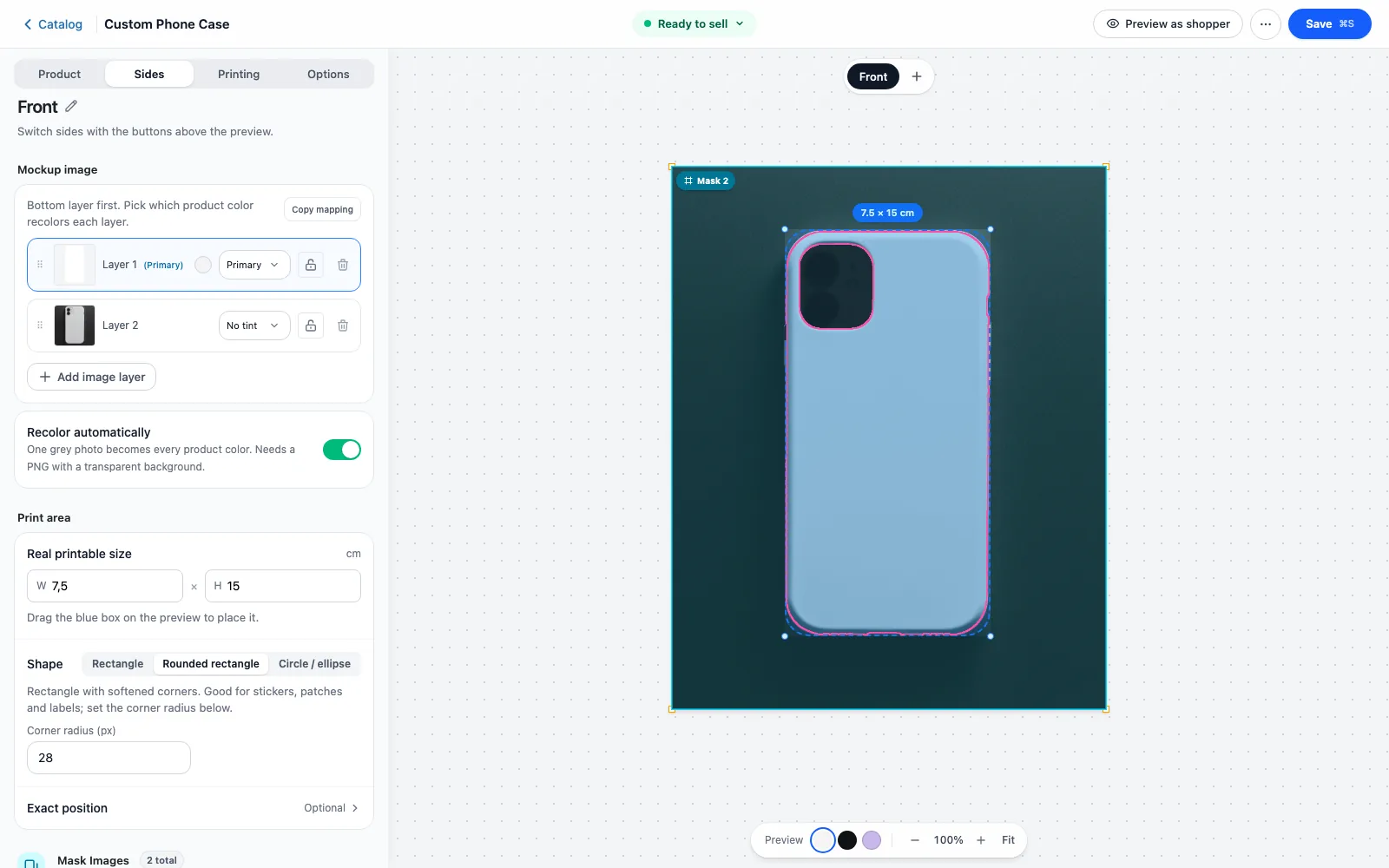
Open the product in the Veyo catalog editor, choose the side, and drop images onto Mask Images or click to browse. Drag the mask or its corners on the preview, or type exact values, then save the product.
-
It renders automatically
From then on, every customer's design for that view renders underneath the mask, so the overlapping detail always stays visible.
At a glance
| Version | 1.2.5 |
|---|---|
| Platforms | WordPress + WooCommerce, OpenCart 3 & 4, PrestaShop 8 & 9, and Shopware 6.6 / 6.7 |
| Requires | Veyo Product Personalizer 1.0.1 or later (1.2.0 or later on OpenCart and PrestaShop). No other addons. |
| Where settings live | The Mask Images panel (sides section) of the Veyo catalog product editor, per product and per side. There is no global settings screen. |
| Server tools / outside services | Adds server code that hands the saved masks to the designer. Mask images are uploaded to your own store through Veyo’s normal media upload. No outside services. |
What shoppers see
- The mask drawn on top of the product photo and the shopper’s artwork for that side, for example a camera cut-out or a strap. It cannot be selected, moved or edited by shoppers.
- Each side can have its own masks; with no mask, the design is drawn over the product photo as is.
- The same masks are drawn when the cart and order preview images are generated. A mask that fails to load is skipped and does not block the preview.
Settings
The Mask Images panel shows Layers on this side with a tab for each side (when the product has more than one). Each mask is named Mask 1, Mask 2 and so on; the topmost is tagged Top.
| Setting | Default | Range / options | What it does |
|---|---|---|---|
| Upload | None | PNG, WebP or SVG; several files at once | Adds one mask layer per file to the current side. |
| From left | 0% | -450% to 450% of the canvas | Horizontal position of the mask. |
| From top | 0% | -450% to 450% of the canvas | Vertical position of the mask. |
| Width | 100% | 0.25% to 500% of the canvas (the field starts at 1) | Mask width. The image keeps its proportions. |
| Height | Follows the image shape at 100% width | 0.25% to 500% of the canvas (the field starts at 1) | Mask height. The image keeps its proportions. |
| Center / Fill width | — | Buttons | Center centers the mask; Fill width sets width to 100% and left to 0. |
| Bring forward / Send backward | Newest on top | Per layer | Changes the stacking order of masks on the side. |
| Remove / Remove all | — | Per layer or per side | Deletes the mask. Remove all asks first: “You can undo by leaving without saving.” |
| Include in print file | Off | Per mask | When on, this mask is its own layer above the shopper’s artwork in the production file. Off keeps it as a preview overlay only. A layer row tagged In print file or Cut line shows the choice. |
| Print layer | Transparent image | Transparent image, or Cut line. Shown only when Include in print file is on | Transparent image places the mask with its empty areas left transparent, in both the SVG and the PNG. Cut line draws a stroke around the opaque shape, including holes such as a camera cut-out. The stroke is in the SVG only, so it is not printed on the PNG. It is a visible path, not a separate spot-color channel. |
See the Admin guide for the catalog editor.
What you get in orders and production
With Include in print file off, a mask stays a visual overlay. It appears in the designer and in the preview images for the cart and order, and the production PNG/SVG contains only the shopper’s artwork.
With the switch on, that mask is an extra layer above the artwork, clipped to the print area like the rest of the file. Transparent image is in the SVG and the PNG. Cut line is in the SVG only: a stroke around the opaque shape, including holes, and it is left out of the PNG so the line is not printed on the product. The print area and pricing rules do not change. See Orders & production files.
Data and privacy
- Stored on your server: the mask images, saved through Veyo’s normal media upload, and each product’s mask list (image address, position, size, order, whether it is included in the print file, and which print layer it uses) inside the product’s saved design settings. The addon creates no database tables or options of its own.
- Shopper data: none. Masks are the same for every shopper.
- Outside services: none.
- Uninstalling: removing the addon keeps its data, so reinstalling restores every mask. Uninstalling the whole of Veyo with Keep data when uninstalling off erases the Veyo tables and files, including the stored masks. See Uninstalling & your data.
Troubleshooting
- The Mask Images panel is missing. Check the addon is enabled in Extensions. The panel is in the catalog product editor, not in the store’s own product form.
- “Upload failed” or “Could not upload mask images.” The file did not reach your server. Check the file type (PNG, WebP or SVG), your upload size limit and disk space.
- The mask is not lined up. Export it at the same aspect ratio as the product photo and use Fill width, or drag it on the preview and fine-tune From left and From top.
- The mask hides the design completely. Opaque areas cover the artwork. Use transparency where the design should show through.
- My changes are gone. The masks are saved with the product, so save the product after editing; leaving without saving discards them.
FAQ
Does the mask affect the print area or pricing?
No. The print area and pricing rules stay the same. With Include in print file off, production files contain only the shopper’s artwork and the mask is a preview overlay. With it on, the mask is one more layer above that artwork. A cut line is a stroke in the SVG, not a spot-color channel, and it is not included in the PNG.
Can different views have different masks?
Yes, masks are configured per view, so a pocket on the front view and a different overlap on the back view are handled independently. A view can also carry several masks, stacked in the order shown in the panel.
Installing, updating and removing
- Install: upload the ZIP in Extensions, then enable it. See Install addons.
- Update: upload the newer ZIP over the old one. Settings and data are kept. See Upgrading.
- Remove: Uninstall on the addon card removes its files and keeps its data, so reinstalling restores everything. See Uninstalling & your data.