Home › Docs › Addons › Print Queue

Print Queue
$29 Production workflow for personalized orders: print stations, hotfolder files, traveler barcodes and scan-to-advance stages.
Platforms: WordPress + WooCommerce, OpenCart 3 & 4, PrestaShop 8 & 9, and Shopware 6.6 / 6.7. Version: 2.1.3.
Every purchase is a single signed, install-ready ZIP with a license key from Polar: one-time payment, free updates for life and 6 months of email support. Installs through the Veyo Apps screen.
What Print Queue does
Print Queue turns every paid personalized order into production jobs. Each printed view of each personalized line becomes a job with a priority (taken from the shipping method) and a due date (your turnaround in business days), routed to the station that can print it.
Each station is one printer or work cell: you choose the print methods it handles, the files its RIP needs (preview PNG, SVG, 300 dpi PNG/TIFF, CMYK TIFF, PDF/X, white underbase), whether the output is mirrored (DTF film, sublimation paper) and an optional hotfolder of its own. Presets for DTG, DTF, screen printing, sublimation, UV and large format get you started in minutes.
Features
- Stations and routing. One station per printer or work cell, with print-method rules and presets for DTG, DTF, screen, sublimation, UV and large format. With no stations configured, everything goes to a single General station.
- Hotfolder files, JSON ticket and barcode. Every job writes its artwork files, a JSON job ticket and a Code128 traveler barcode (PQ-{job id}) into the station hotfolder, ready for your RIP or press software. Failed exports retry automatically with backoff and keep the error on the job.
- Certified CMYK and PDF/X output (optional). By default jobs export preview files. Add your shop CMYK press ICC profile and enable production files to generate CMYK TIFF and PDF/X. Anything doubtful waits in Prepress for review instead of reaching the press.
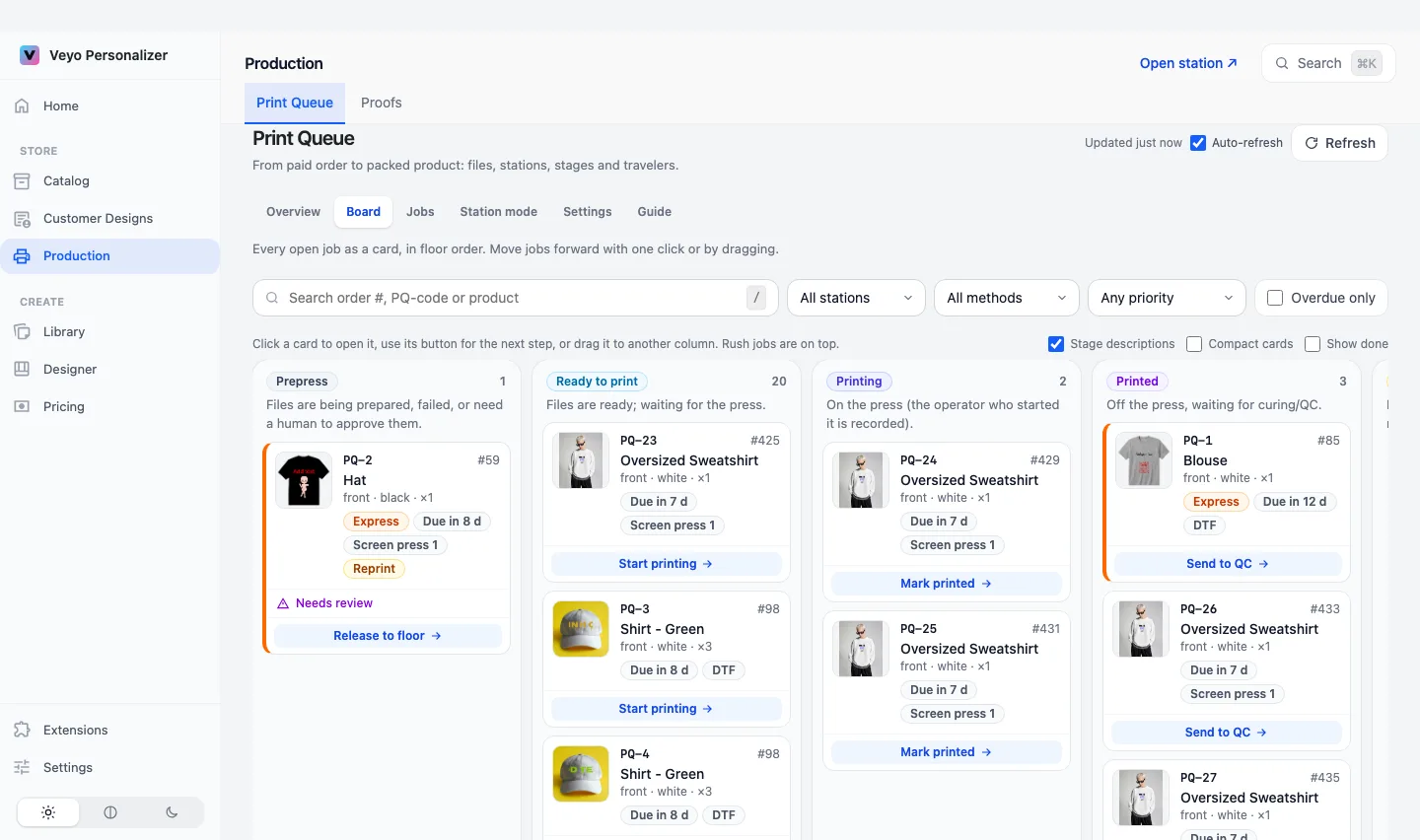
- Floor workflow with history. Prepress, Ready to print, Printing, Printed, QC, Packed, Done, plus On hold and Cancelled. QC and packing can be switched off. QC failures return to Ready to print as a reprint with a reason, and every change is written to the job history.
- Station mode for operators. A scan-first screen for the press: scanning a traveler advances the job. Users with the Print Operator role get a standalone Production menu with Station mode only, so operators never see the rest of wp-admin.
- Order sync. Cancelled, refunded or deleted orders (and fully refunded lines) cancel their jobs. Orders get notes and a Production metabox, and when every job is done the order can move to a status you choose.
- Webhooks and REST API. Signed webhooks (job.created, job.files_ready, job.failed, job.stage_changed, order.production_done) sent in up to 5 attempts, plus a REST API for listing, stage changes, scans, bulk actions, travelers and downloads, authenticated with a WordPress Application Password.
- Production limits. Artwork is downloaded up to 200 MB per file (
veyop_print_queue_download_max_bytes), and each CMYK or PDF/X render asks PHP for 1024M of memory and 300 seconds.
How to set up Print Queue
-
Buy and install
Download the addon ZIP from your Polar purchase email or customer portal, then upload it in Veyo → Extensions. Veyo verifies the package signature before installing.
-
Add your stations
In Production → Print Queue → Settings → Stations & routing, add one station per printer or work cell. Pick a preset (DTG, DTF, screen, sublimation, UV, large format) and set its hotfolder if your RIP watches one.
-
Choose when jobs are created
Jobs are created when an order reaches a trigger status (Processing by default; Completed always works as a fallback). Set shipping-method priorities and your turnaround time so due dates are filled in automatically.
-
Run the floor
Review anything in Prepress, then let operators scan travelers in Station mode to move jobs through printing, QC and packing.
At a glance
| Version | 2.1.3 |
|---|---|
| Platforms | WordPress + WooCommerce, OpenCart 3 & 4, PrestaShop 8 & 9, and Shopware 6.6 / 6.7 (since 2.0.5 with Veyo 1.6.1) |
| Requires | Veyo Product Personalizer 1.0.1 or later with WooCommerce, 1.6.1 or later on OpenCart and PrestaShop, or 1.8.0 or later on Shopware. No other addon is required. |
| Where settings live | Veyo Personalizer → Production → Print Queue, then the Settings tab. The same page has the Board, Jobs, Station mode and Guide tabs. |
| Server tools / outside services | None for the default preview files. CMYK TIFF and PDF/X output needs librsvg (rsvg-convert), ImageMagick (CLI or the Imagick PHP extension) and Ghostscript on the web server, plus a CMYK ICC profile. All of these run through PHP exec(); if your host disables it you can still export by hand: the Download PNG button on the order’s production page renders the file in your browser instead, at 300 DPI. Webhooks call only the URLs you enter. |
What shoppers see
Nothing. Print Queue works only on the server and in wp-admin. Shoppers do not see any panel, button or message from it. Only your staff see jobs, travelers and the Production box on the order screen.
Settings
Open Production → Print Queue → Settings. The settings are split into five sections on the left. Click Save settings when you are done; Re-check paths re-reads the hotfolder status.
Stations & routing
| Setting | Default | Range / options | What it does |
|---|---|---|---|
| Add a station (presets) | No stations | DTG, DTF transfer, Screen print, Sublimation, UV printing, Large format, or Blank station | Starts a station from a preset for your print technology. With no stations, every job goes to one General station. |
| Name / Station ID | Preset name | Text | The label shown on the board and the id used internally. |
| Turnaround (business days) | 0 (preset: 2 to 5) | 0 to 60 | This station's own turnaround. 0 means use the default turnaround. |
| Print methods handled here | None | The printing methods defined in Veyo (Printing & Pricing) | A job goes to the first enabled station that lists its print method. |
| Files to write to the hotfolder | Preset's files; empty means all file types | Preview PNG, Vector SVG, PNG 300 dpi, TIFF 300 dpi (RGB), CMYK TIFF 300 dpi, PDF/X, White underbase | Everything except Preview PNG needs Generate real production files (below). |
| Mirror output | Off (on in the DTF and Sublimation presets) | On / off | For transfer media printed face-down: DTF film, sublimation paper, some heat-transfer vinyl. |
| Own hotfolder (optional) | Empty | Absolute path | A folder watched by this printer's RIP. Empty means a sub-folder of the main hotfolder. |
| Enabled | On | On / off | Disabled stations receive no new jobs. |
| Default station for unrouted jobs | First station | One station | Gets jobs whose print method no station lists. |
Stages & due dates
| Setting | Default | Range / options | What it does |
|---|---|---|---|
| Quality check step | On | On / off | Turn off if your shop has no QC step. Jobs already in a disabled step can still be moved on. |
| Packing step | On | On / off | Same, for packing. |
| Default turnaround (days) | 3 | 0 to 60 | Due date = order date + turnaround. A station's own turnaround overrides it; a shipping rule overrides both. |
| Count business days only (skip weekends) | On | On / off | Skips Saturday and Sunday when the due date is counted. |
| Priority by shipping method (Add shipping rule) | No rules | Shipping method, Priority (Standard, Rush, Express), Turnaround (days) 0 to 60 or empty for the default | Rush and Express jobs sort first on the board and in Station mode. |
Files & hotfolder
| Setting | Default | Range / options | What it does |
|---|---|---|---|
| Hotfolder location | WordPress uploads | WordPress uploads, or Custom absolute path | Where artwork, JSON tickets and barcode SVG files are written. The default is the veyo-print-queue folder inside wp-content/uploads; a custom path must be absolute and writable (a relative path is rejected). The status line shows Writable or Not writable. |
| Organize exports into YYYY/MM/DD subfolders | On | On / off | Keeps the hotfolder tidy by date. |
| Generate real production files (CMYK TIFF / PDF-X) | Off | On / off | When off, only the preview PNG is exported. When on, each station gets the file types it asks for. A missing requested file sends the job to Needs review. A badge shows Toolchain detected or Toolchain missing. |
| Preflight policy | Flag errors for review (recommended) | Flag errors for review, or Log only | Jobs flagged for review wait in Prepress until someone approves the files. |
Automation
| Setting | Default | Range / options | What it does |
|---|---|---|---|
| When to create jobs | Processing | Any WooCommerce order status (tick one or more) | Jobs are created when an order reaches a ticked status. Completed always works as a fallback for orders that skip Processing. Cancelled, refunded and failed orders cancel their jobs. |
| Retries | 3 | 0 to 10 | How often failed file preparation is retried automatically. |
| First wait (seconds) | 300 | 30 to 86400 | Wait before the first retry; the wait doubles each time. |
| Add private order notes | On | On / off | Notes for jobs queued, file failures, cancellations and production complete. |
| Change the order status when production is complete | Off | On / off | When every job of an order is Done (cancelled jobs ignored), set the order to the status below. |
| New order status | Completed | Any WooCommerce order status | Used only when the switch above is on. |
Webhooks
| Setting | Default | Range / options | What it does |
|---|---|---|---|
| Endpoint URL | No webhooks | http:// or https:// URL | Where each event is sent as a JSON POST, in up to 5 attempts. |
| Signing secret | Empty | Text; write-only | Signs the body with a sha256 HMAC in the X-Veyop-Signature header. Leave it empty on an existing webhook to keep the saved secret. |
| Events | All events | Job created, Files ready / needs review, File preparation failed, Stage changed, Order production complete | Which events this endpoint receives. |
| Enabled | On | On / off | Pauses the webhook without deleting it. |
What you get in orders and production
- Jobs. One job per printed view of each personalized line. Stages are Prepress, Ready to print, Printing, Printed, Quality check, Packed, Done, plus On hold and Cancelled. A quality failure goes back as a Reprint, and a reason is required.
- Hotfolder files. For each job: the artwork file(s) (
.preview.png,.production.svg,.300dpi.png,.300dpi.tiff,.cmyk.300dpi.tiff,.pdfx.pdfor.white-underbase.300dpi.tiff, depending on the station), a.ticket.jsonjob ticket and a.barcode.svgCode128 barcode (PQ-plus the job id). The folder is protected from direct web access. - Travelers. A printable ticket per job in 4x6, A6 or A4 with product, SKU, size, colour, placement, print size, method, station, options, due date, priority and the barcode. Scanning it in Station mode advances the job; a traveler from another station is only looked up.
- Order screen. A Production box on the WooCommerce order with each job's stage and the buttons Open Print Queue and Print travelers, plus private order notes when that setting is on.
- Order sync. Cancelled, refunded, failed or deleted orders cancel their jobs, as do fully refunded lines. Moving a cancelled order back to a trigger status reinstates its jobs.
- With Proof & Approval. If Proof & Approval is installed, Print Queue creates jobs only for lines the customer has approved. See Orders & production for the wider workflow.
- Operators. The addon creates a Print Operator role (and gives administrators and shop managers the same production capability). Operators get a standalone Production menu with Station mode only.
Data and privacy
- Database tables:
{prefix}veyop_print_jobs(jobs, including the ticket JSON) and{prefix}veyop_print_job_events(the history of every change). Options:veyop_print_queue_settingsandveyop_print_queue_db_version. - Files: hotfolder files hold customer artwork. By default they live in
wp-content/uploads/veyo-print-queue, or in the custom folder you choose. Veyo's own uninstall does not delete this folder, so remove it yourself if you no longer need the files. - Outside requests: the webhook URLs you add, and, if a design file is stored as a public web address rather than on your server, the server downloads that file once to prepare the job. Nothing is sent to Veyo.
- Shopper data: jobs carry the order id, product, options and the customer's note from the order. Nothing is collected from shoppers in the browser.
- Uninstalling the addon keeps all of this data, so reinstalling restores your jobs. Uninstalling the whole of Veyo with Keep data when uninstalling off deletes every
veyop_*table and option, including these. See Uninstalling & your data.
Troubleshooting
- A job says "Waiting for files" for more than about 5 minutes. WP-Cron may not be running on a low-traffic site. Open the job and click Prepare files now, or set up a real server cron.
- "File preparation failed". The error is shown on the job. Fix the folder permissions or hotfolder path, then click Retry. Automatic retries stop after the number set in Retries.
- A job is in Prepress with "Needs review". The files did not pass the checks, or the server toolchain is missing while Generate real production files is on. Open the job, check the files, then click Release to floor.
- "Hotfolder path ... must be absolute" or "Custom hotfolder directory is not writable". Enter a full path such as
/Volumes/Production/RIP-Hotfolder, and make sure the web server user can create files there. - The scanner types nothing in Station mode. Click the scan field first and make sure the scanner sends Enter after the code. A message "This job belongs to another station" means the traveler was only looked up, not advanced.
FAQ
Do I need a RIP or hotfolder?
No. The queue, dashboard and Station mode work on their own. Hotfolders are an optional automation layer for shops with RIP or press software that watches a folder.
Can it produce CMYK and PDF/X files?
Yes, as an opt-in mode. It needs a CMYK press ICC profile (uploaded in Settings → Print readiness → Color output) and the server tools librsvg, ImageMagick or Imagick, and Ghostscript, which PHP must be allowed to run with exec(). Always verify output in your RIP before bulk production.
Does it work on OpenCart, PrestaShop or Shopware?
Yes. On Shopware 6.6 / 6.7 it runs from version 2.1.1 with Veyo 1.8.0. On OpenCart and PrestaShop, since version 2.0.5 with Veyo 1.6.1 or later, on OpenCart 3.0.4+ and 4 and PrestaShop 8 and 9. Jobs are created when an order reaches a ticked status, the queue lives under Veyo Personalizer in the admin, and the order page shows a Production panel. Differences from WordPress: print files are kept in the store’s private storage, the REST API with Application Passwords is WordPress only, and since these stores have no scheduler, file preparation and webhook deliveries run while the production screens are open. Use Process now on a job to run it at once.
What does it need?
Veyo Product Personalizer 1.0.1 or later with WooCommerce, or 1.6.1 or later on OpenCart and PrestaShop. No other addon is required.
Installing, updating and removing
- Install: upload the ZIP in Extensions, then enable it. See Install addons.
- Update: upload the newer ZIP over the old one. Settings and data are kept. See Upgrading.
- Remove: Uninstall on the addon card removes its files and keeps its data, so reinstalling restores everything. See Uninstalling & your data.