Orders & production files
Where to find each customer's artwork after they buy, what files you get, and how to prepare them for your printer.
What happens when a customer orders
The finished design travels with the cart item through checkout. When the order is placed, each personalized order line keeps a preview of the design and the files needed to print it.
The files you get (per order line)
| File | What it is | Use it for |
|---|---|---|
| Production PNG | Artwork only, on a transparent background, per view. Exported at 300 DPI from the real print-area size you entered. | DTG, DTF, sublimation and most RIP software. |
| SVG | Vector export per view. | Screen printing, vinyl, embroidery digitizing, engraving. |
| Production bundle (ZIP) | Every view's files in one download. | Sending to a print partner or archiving. |
Files are rendered on your server at full resolution and clipped exactly to the print area. Fonts in the file match what the customer saw.
Where to find them
| Platform | Open |
|---|---|
| WordPress / WooCommerce | WooCommerce → Orders → open the order → the line item shows the design preview with download links |
| OpenCart 3.0.4+ / 4 | Sales → Orders → open the order (info page) → design previews and downloads |
| PrestaShop 8/9 | Orders → Orders → open the order → design previews and production downloads on the order page |
| Shopware 6.6 / 6.7 | Orders → Overview → open the order → Veyo tab |
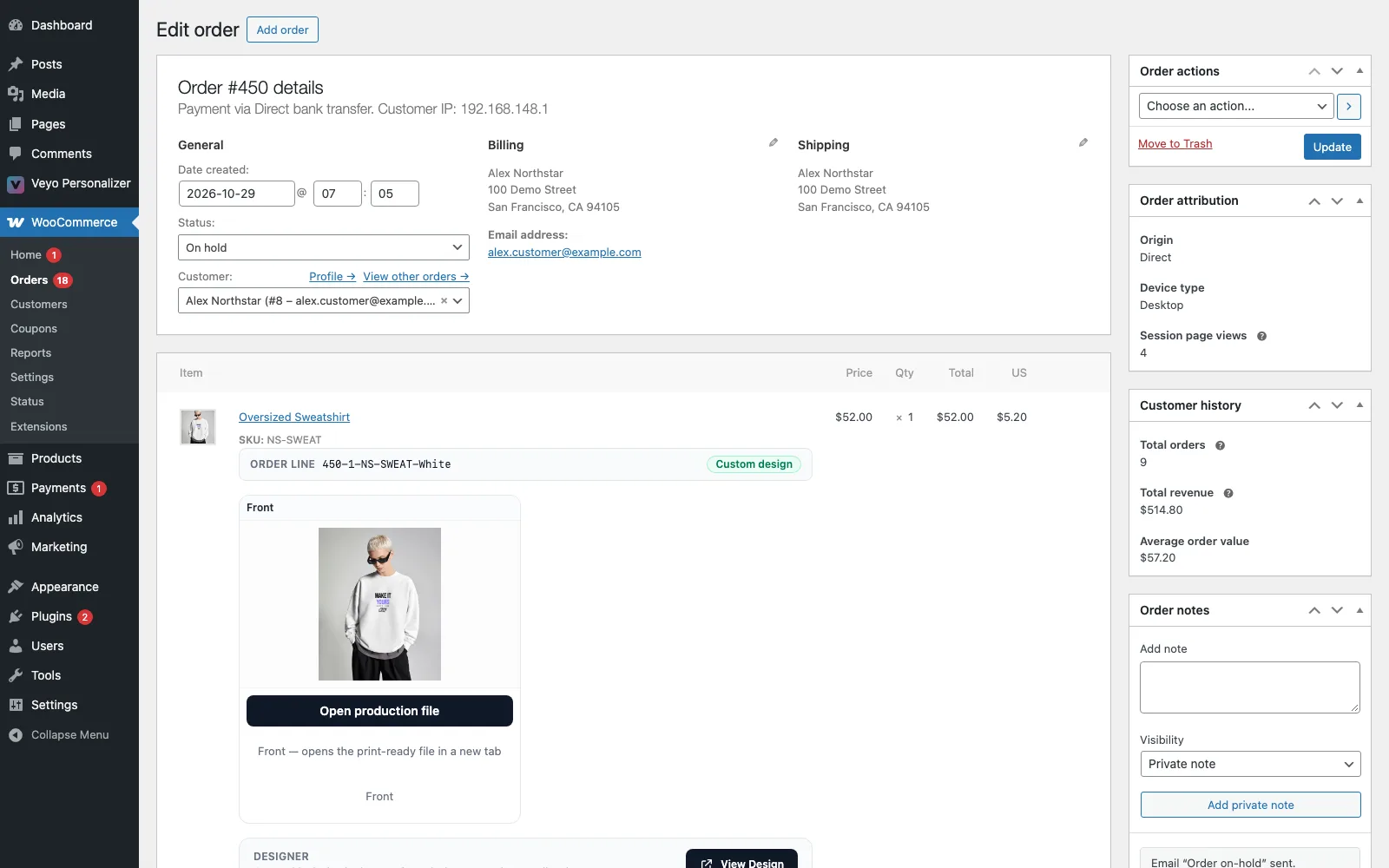
- Each design appears as one compact card with its preview, options, price breakdown and actions.
- An order line that has no artwork shows a No artwork added badge, so you can spot it before production.
- The print package is named after the order line, and print files keep the customer's original upload.
- On OpenCart, PrestaShop and Shopware the download link on the order page is valid for 24 hours. Reload the order page if it has expired.
Customers' saved designs (not tied to an order) are in Veyo Personalizer → Customer Designs.
Before sending files to print
- Check the print size you entered per view is the real printable size; the 300 DPI export scales from it.
- Use Preflight to stop low-resolution artwork, or artwork outside the safe zone, from reaching production (Preflight).
- Want customer sign-off? Proof & Approval sends the design for approval before production.
Automating production
The Print Queue addon adds a factory workflow on top: jobs are queued at an order status you choose (default: processing), files go to a hotfolder per printer station, job tickets carry barcodes, and each job moves through stages from prepress to done. It can also create CMYK TIFF and PDF/X files when your server has the right tools.
CMYK, TIFF and PDF/X (optional)
The designer works in RGB. For certified CMYK output your server needs rsvg-convert (librsvg) together with ImageMagick (or Imagick), plus Ghostscript for PDF/X and a shop-approved CMYK ICC profile. See the server package guide, then enable real production files in Print Queue and always check a sample in your RIP before a bulk run.
exec(), or the tools are missing? You can still export: the Download PNG button on the order’s production page renders the file in your browser instead, at 300 DPI, and Download SVG and PDF are made there too. The page shows a note and dims PDF/X and CMYK TIFF, the only two buttons that need the server.If a download is missing or blank
- Check Settings → System Status for the PHP GD extension and a writable uploads/image folder.
- If you uninstalled Veyo with Keep data off, the files of orders that reference a design are kept, but Veyo's tables are gone. Restore them from a backup and reinstall. See Uninstalling & your data.
- Still stuck? Email support@veyodesigner.com with the order number and your platform and PHP version.