Home › Docs › Addons › AI Image Tools

AI Image Tools
$12 Upscale low-resolution uploads and remove image backgrounds with an AI image service you control.
Platforms: WooCommerce, OpenCart, PrestaShop & Shopware 6. Version: 1.2.5.
Every purchase is a single signed, install-ready ZIP with a license key from Polar: one-time payment, free updates for life and 6 months of email support. Installs through the Veyo Apps screen. The AI service is billed separately by the provider you choose.
What AI Image Tools does
AI Image Tools helps shoppers who upload small or busy images. Upscale raises the source resolution 2x or 4x so a low-resolution logo can reach print quality, and Remove background returns a transparent PNG ready to place on the product.
You connect the AI image service you want to use (remove.bg, PhotoRoom, Stability AI or your own HTTP service), so you control the provider, the cost and the limits: a daily quota per visitor and for the whole store, a maximum input size, rate limiting and result caching so the same image is never processed twice.
Features
- Upscale 2x or 4x. Raises the source resolution of an upload. The on-canvas size stays the same, so effective DPI goes up.
- Remove background. Returns a transparent PNG straight into the designer.
- Bring your own provider. remove.bg or PhotoRoom (background removal), Stability AI (4x upscale and background removal), or any HTTP image service by endpoint URL. The API key is encrypted and can also be set in the store config file.
- Cost controls. Per-operation switches, daily quotas per visitor and for the whole store, a maximum input size and rate limiting protect your provider bill.
- Result caching. Repeating the same operation on the same image is served from cache, so it costs nothing.
- Safe by design. Endpoint checks block unsafe hosts, admin actions are CSRF-protected, and the key is never logged. The service stays disabled until you configure it.
How to set up AI Image Tools
-
Buy and install
Download the addon ZIP from your Polar purchase email or customer portal and install it from the Veyo Apps screen.
-
Connect a provider
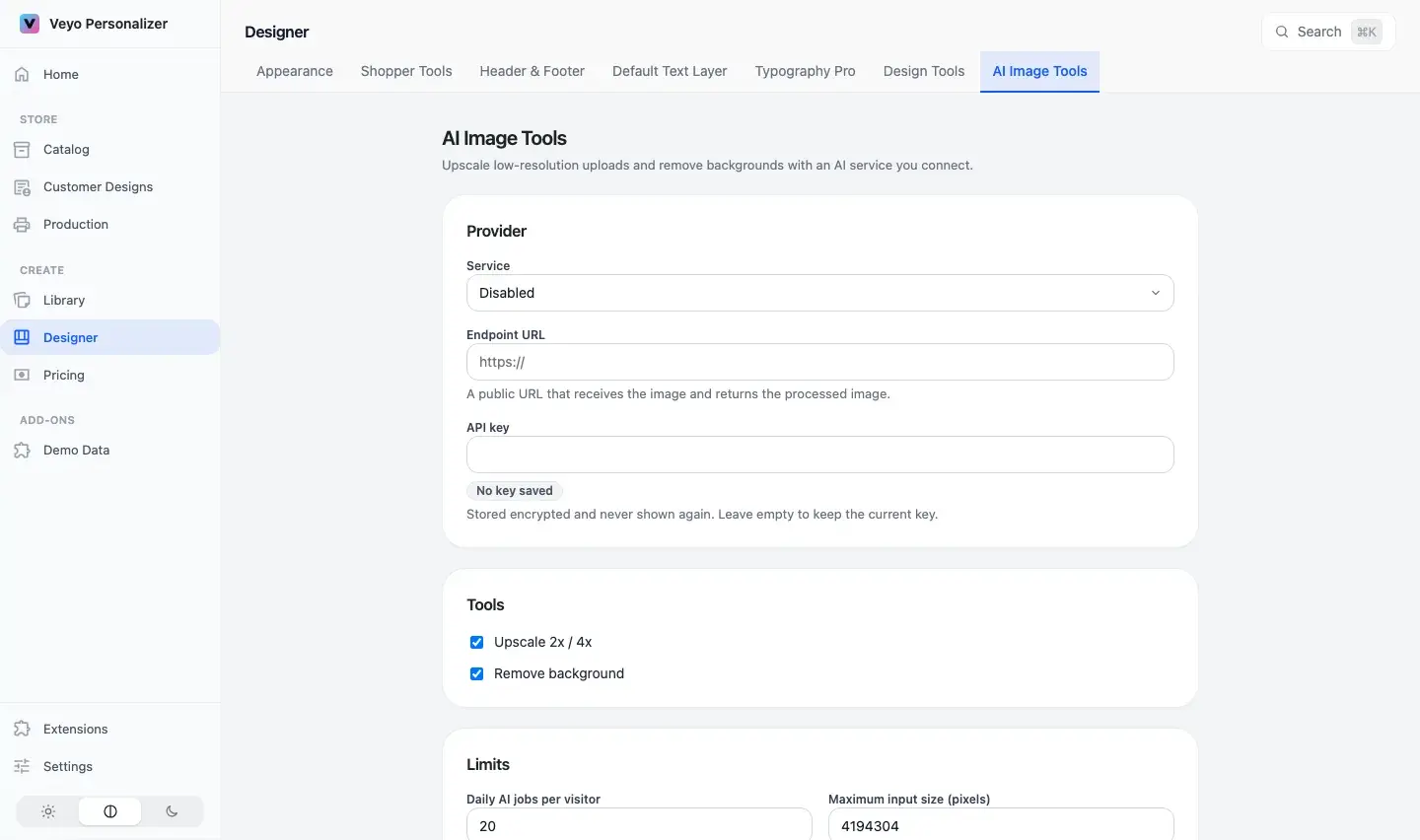
Open Designer → AI Image Tools in the Veyo admin. Choose a Service (remove.bg, PhotoRoom, Stability AI or HTTP image service), enter its API key (and the Endpoint URL for an HTTP service), save, then use Test connection.
-
Set limits
Choose the tools to offer, the Daily AI jobs per visitor, the Daily AI jobs for the whole store and the Maximum input size (pixels), then Save settings.
-
Shoppers use it in the designer
An AI Enhance menu with Upscale 2x, Upscale 4x and Remove background appears in the designer's image toolbar once the service is enabled and at least one tool is switched on.
How it works
At a glance
| Version | 1.2.5 |
|---|---|
| Platforms | WooCommerce, OpenCart 3 & 4, PrestaShop 8 & 9, and Shopware 6.6 / 6.7. |
| Requires | Veyo Product Personalizer 1.0.1 or later. No other addons. |
| Where settings live | Veyo admin, Designer hub, AI Image Tools tab. |
| Server tools / outside services | An account with remove.bg, PhotoRoom, Stability AI or your own AI image service reachable over public http(s). The PHP sodium extension is needed to save the key from the admin page; otherwise define VEYOP_AI_IMAGE_API_KEY in wp-config.php (or the store config file). |
What shoppers see
- When an image layer is selected, the image toolbar shows an AI Enhance button that opens a small menu: Upscale 2x, Upscale 4x and Remove background. Tools you switched off are hidden; if both are off, or no service is configured, the button does not appear.
- While a job runs the button reads Processing…. If it fails it reads Failed for about four seconds, and the reason is shown as the button’s tooltip.
- The result replaces the image on the canvas. The on-canvas size stays the same, so an upscale raises the effective DPI. Each result is a single undo step.
- Only PNG, JPEG and WebP are accepted (no SVG or GIF), up to 12 MB per image. The result of an upscale is capped at 64 megapixels.
- The image must be readable from the same site (an uploaded file or data URL). A cross-origin image cannot be processed and shows a failure.
Settings
| Setting | Default | Range / options | What it does |
|---|---|---|---|
| Service | Disabled | Disabled, remove.bg, PhotoRoom, Stability AI, HTTP image service | Disabled switches every AI tool off. remove.bg and PhotoRoom only remove backgrounds; Stability AI upscales 4x (images up to 1 megapixel) and removes backgrounds; HTTP image service sends images to the endpoint below. |
| Endpoint URL | Empty | A public http(s) URL | HTTP image service only: where images are posted. Redirects are not followed. |
| API key | None | Up to 512 characters, one line | The provider key (sent as a Bearer token to an HTTP service). Stored encrypted and never shown again. A key defined as VEYOP_AI_IMAGE_API_KEY in wp-config.php always wins and makes the field read-only. |
| Upscale 2x / 4x | On | On / off | Offers the two upscale options in the AI Enhance menu. |
| Remove background | On | On / off | Offers background removal in the AI Enhance menu. |
| Daily AI jobs per visitor | 20 | 0 to 10000 (0 = unlimited) | Fresh jobs per signed-in user, or per visitor IP, per day. Repeated images and failed jobs do not count. |
| Daily AI jobs for the whole store | 200 | 0 = unlimited | A hard cap on provider cost, whoever runs the jobs. Repeated images and failed jobs do not count. |
| Maximum input size (pixels) | 4194304 (2048 × 2048) | 65536 to 16777216 | Larger images are rejected to control provider cost. |
Test connection sends a 1×1 image to your endpoint, so a paid provider may bill for it. Save your changes first.
What you get in orders and production
Nothing extra. The processed image is saved as an ordinary image layer in the design, so it goes into production files the same way as any other image. See Orders & production files.
Data and privacy
- Outside service: every uncached job sends the shopper’s image to the provider you configure (timeout 90 seconds). Choose a provider whose data handling suits your shop and mention it in your privacy policy.
- Stored on your server: processed images, kept by content hash in
uploads/veyo-product-personalizer/ai/. A short-lived daily counter and a per-IP rate limit (10 requests per minute) are kept as temporary records. - Options:
veyop_ai_image_tools_settingsand, if you save the key in the admin,veyop_ai_image_tools_secret. The addon creates no database tables. - Uninstalling: removing the addon keeps its data. Uninstalling the whole of Veyo with Keep data when uninstalling off erases all
veyop_*tables and options. See Uninstalling & your data.
Troubleshooting
- The AI Enhance button is missing. Service is still Disabled, no tool is switched on, or the settings were not saved.
- “The endpoint must be a public http(s) URL.” Private or local addresses are refused. Use a publicly reachable address.
- “Saving a key needs the PHP sodium extension.” Define the key in
wp-config.phpinstead. If you rotate the WordPress salts, re-enter a saved key. - “Daily AI limit reached. Please try again tomorrow.” The visitor used up the daily quota. Raise Daily AI jobs per visitor or set it to 0.
- “Image dimensions are too large for AI processing.” The image is above Maximum input size (pixels). Raise it, up to 16777216.
FAQ
How is it sold?
$12 one-time through Polar, with free updates. The AI provider bills you separately for the jobs it runs.
Does it include an AI provider?
No. You connect remove.bg, PhotoRoom, Stability AI or your own HTTP service, so you control cost and data handling.
Do I already have a free background remover?
Yes. The free Background Remover addon runs in the browser. AI Image Tools is the server-side option with upscaling.