Home › Docs › Addons › Dynamic Pricing

Dynamic Pricing
$19 Print-shop pricing for personalized products: size bands, price per area, screen setup, quantity tiers and minimums, calculated on the server.
Platforms: WooCommerce, OpenCart, PrestaShop & Shopware 6. Version: 2.2.2.
Every purchase is a single signed, install-ready ZIP with a license key from Polar: one-time payment, free updates for life and 6 months of email support. Installs through the Veyo Apps screen.
What Dynamic Pricing does
Dynamic Pricing lets you charge for personalization the way a print shop does. Instead of one flat fee, the price follows what the shopper actually designed: how big the artwork is, how many colors and print locations it uses, which elements it contains and how many items are ordered.
Prices are always calculated on the server, and shoppers see the same breakdown in the designer, the cart and the checkout. When the quantity changes in the cart, fees, tiers and one-off setup fees are re-priced automatically, so what the shopper sees is what they pay.
Features
- Print size bands. Price each printed side by artwork size (A6 up to A3 and oversize). Ideal for DTG and DTF.
- Price per area. Charge per m2, cm2 or in2 with a minimum charge. Ideal for large format printing.
- Screen setup per color. One screen per color per side, charged once per order line, the way screen printers quote.
- Extra ink colors and print locations. Per-item fees for ink colors beyond the free ones and for printed sides beyond the free ones.
- Large print area and element fees. Charge when artwork covers more than a share of the print area, and per text layer, image upload or premium clipart.
- Quantity discounts and minimum quantity. Several discount tiers that apply to per-item fees and never to setup fees, plus a minimum order quantity that blocks add to cart and cart updates below it.
- Scoped rules. Several rules of each type, limited to products, WooCommerce categories, printing methods and print locations.
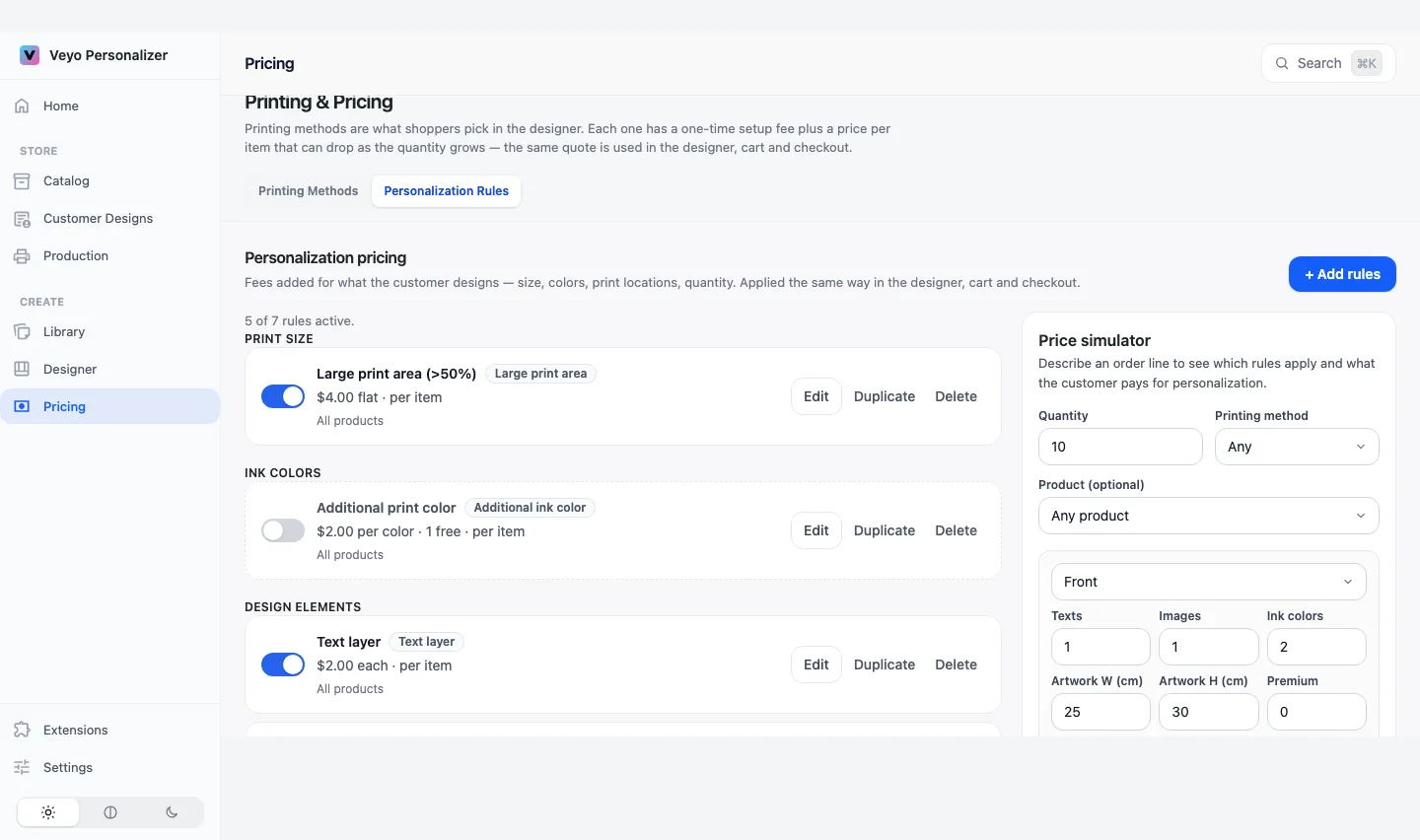
- Starter sets and price simulator. Starter sets for DTG/DTF, screen printing, sublimation/UV, large format and quantity discounts are added switched off with example prices. The simulator shows exactly what an order line would cost, including inactive rules.
How to set up Dynamic Pricing
-
Buy and install
Download the addon ZIP from your Polar purchase email or customer portal and install it from the Veyo Apps screen. Dynamic Pricing requires the Printing & Pricing addon to be installed.
-
Open Personalization Rules
In the Veyo admin, open Pricing → Printing & Pricing and switch to the Personalization Rules tab. The tab only appears while both addons are installed and enabled.
-
Add a starter set
Pick the starter set that matches your printing method (DTG/DTF, screen, sublimation/UV, large format or quantity discount) and edit the example prices.
-
Scope and test
Limit rules to products, categories, printing methods or print locations, try an order line in the price simulator, then switch the rules on.
At a glance
| Version | 2.2.2 |
|---|---|
| Platforms | WordPress / WooCommerce, OpenCart 3 & 4, PrestaShop 8 & 9, Shopware 6.6 / 6.7 |
| Requires | Veyo Product Personalizer 1.1.0 or later, and the Printing & Pricing addon |
| Where settings live | Pricing → Printing & Pricing → Personalization Rules tab |
| Server tools / outside services | None. Prices are calculated by your own store; nothing is sent to an outside service. |
What shoppers see
Dynamic Pricing has no panel of its own in the designer. Shoppers see its fees as lines of the price breakdown, named after each rule's Name shown in the price breakdown, in the designer, the cart and the checkout. Screen setup is charged once per order line, whatever the quantity.
- A Minimum order quantity rule stops add to cart and cart updates below the minimum. The shopper sees the message Minimum order quantity is N.
- Quantity discounts appear as a negative line. The highest tier the quantity reaches applies, and it only reduces per-item fees, never setup fees.
- The product price and the printing-method price from Printing & Pricing are added on top of these fees.
Settings
Click + Add rules to add a starter set or a single rule type. Every rule has a Name shown in the price breakdown, an Amount where the type uses one, an Applies to section (optional limits by printing method, print location, product category and product), an Order in the breakdown number (lower numbers first, from -1000 to 1000) and an Active switch. An amount can be 0 to 100000. Every list, such as size bands or quantity tiers, holds up to 12 rows. Leave Applies to empty to apply the rule to everything.
| Rule type | New rule default | Range / options | What it does |
|---|---|---|---|
| Extra print location | 5.00 per extra side; Free print locations 1 | Free print locations: 0 or more | Charged per item for every printed side beyond the free ones. |
| Text layer | 1.50 per text | Amount only | Charged for every visible text element. |
| Image upload | 2.00 per image | Amount only | Charged for every visible image, upload or clipart. |
| Premium clipart | 3.00 per clipart; Count every clipart, not only premium ones off | Checkbox | Charged for every premium clipart on top of its catalog price. |
| Large print area | 4.00 once per item; Coverage above (%) 50; Compare with Print area | Coverage 1 to 100. Charge: once per item or per print location. Compare with: print area (artwork bounding box) or whole product stage | Charged when artwork covers more than the chosen share. |
| Print size bands | Five bands A6, A5, A4, A3, Oversize at 3, 5, 7, 10 and 14 per side | Up to 12 bands, each with a label, a size limit in cm² (0 means no limit) and an amount. At least one band is required | Prices each printed side by the size of its artwork. |
| Price per area | 25.00 per m²; Minimum charge 10; Measure Whole print area | Area unit: m², cm² or in². Measure: whole print area or artwork bounding box only. Minimum charge 0 or more | Large-format pricing by area with a minimum charge. |
| Additional ink color | 0.50 per color; Free colors 1 | Free colors: 0 or more | Charged per item for every ink color beyond the free ones. |
| Screen setup per color | 15.00 per screen; Free screens per side 0 | Free screens: 0 or more | One screen per ink color per printed side, charged once per order line. |
| Quantity discount | Percentage tiers: 10 pcs 5%, 25 pcs 10%, 50 pcs 15%, 100 pcs 20% | Up to 12 tiers. Charge: Percentage (not above 100) or Fixed amount per item. Optional checkbox to also discount per-item surcharges from other addons | Discounts per-item personalization fees once the line reaches a quantity. One-off charges are never discounted. |
| Minimum order quantity | 12 | 1 or more | Blocks add to cart and cart updates below the minimum. |
The Price simulator beside the rule list takes a quantity, an optional printing method and product, and for each print location the number of texts, images, premium cliparts and ink colors plus the artwork and print area size in cm. Tick Include inactive rules to preview rules you have not switched on yet.
What you get in orders and production
Nothing extra. The personalization fee is part of the price of the cart line, so it is included in the order total. There are no additional production files; see Orders & production files for what every order contains.
Data and privacy
- Stored: your pricing rules, in one table,
{prefix}veyop_pricing_rules(WordPress also keeps a schema version in theveyop_dynamic_pricing_db_versionoption). - Shopper data: none. The public price quote route prices the design a caller sends and stores nothing.
- Outside services: none.
- Uninstalling the addon keeps the rules table, so reinstalling restores every rule. Uninstalling the whole of Veyo with Keep data when uninstalling off deletes all
veyop_*tables, including this one. See Uninstalling & your data.
Troubleshooting
- The Personalization Rules tab is missing. Install and enable Printing & Pricing as well; the tab lives on its page.
- A rule is saved but nothing is charged. Check that Active is on and that the Applies to limits match the product, category, printing method and print location you are testing. The price simulator shows which rules apply.
- The editor says “Add at least one size band.” or “Add at least one quantity tier.” Those two rule types need at least one row in their table.
- “Percent discount cannot exceed 100.” A percentage tier value is above 100. Lower it, or switch the rule to Fixed amount per item.
- Shoppers see “Minimum order quantity is N.” A Minimum order quantity rule applies to that product. Lower the number or narrow its Applies to scope.
More general help is in the Troubleshooting & FAQ and the Admin guide.
FAQ
Does it need Printing & Pricing?
Yes. Dynamic Pricing is managed from the Printing & Pricing page and requires that addon to be installed.
Can customers change the price in the browser?
No. Prices are always calculated on the server, and the browser only shows the result.
What happens when the cart quantity changes?
Personalization fees, quantity tiers and one-off setup fees are re-priced on the server for the new quantity.
Do quantity discounts reduce setup fees?
No. Quantity discounts apply to per-item fees only, never to setup fees.
Will my existing rules keep working after the upgrade?
Yes. Upgrading from 1.x keeps every existing rule billing as before.
Which platforms are supported?
WordPress + WooCommerce, OpenCart 3 & 4, PrestaShop 8 & 9, and Shopware 6.6 / 6.7. It needs Veyo Product Personalizer 1.1.0 or later.
Installing, updating and removing
- Install: upload the ZIP in Extensions, then enable it. See Install addons.
- Update: upload the newer ZIP over the old one. Settings and data are kept. See Upgrading.
- Remove: Uninstall on the addon card removes its files and keeps its data, so reinstalling restores everything. See Uninstalling & your data.