Home › Docs › Addons › Printing & Pricing

Printing & Pricing
$12 Manage printing types, pricing rules, and customer-facing suggested pricing.
Platforms: WooCommerce, OpenCart, PrestaShop & Shopware 6. Version: 1.0.7.
Every purchase is a single signed, install-ready ZIP that also includes full TypeScript/Vue source, sourcemaps, and build tooling (npm ci && npm run build) if you want to customize it yourself. Installs and updates through the in-app addon marketplace.
What Printing & Pricing does
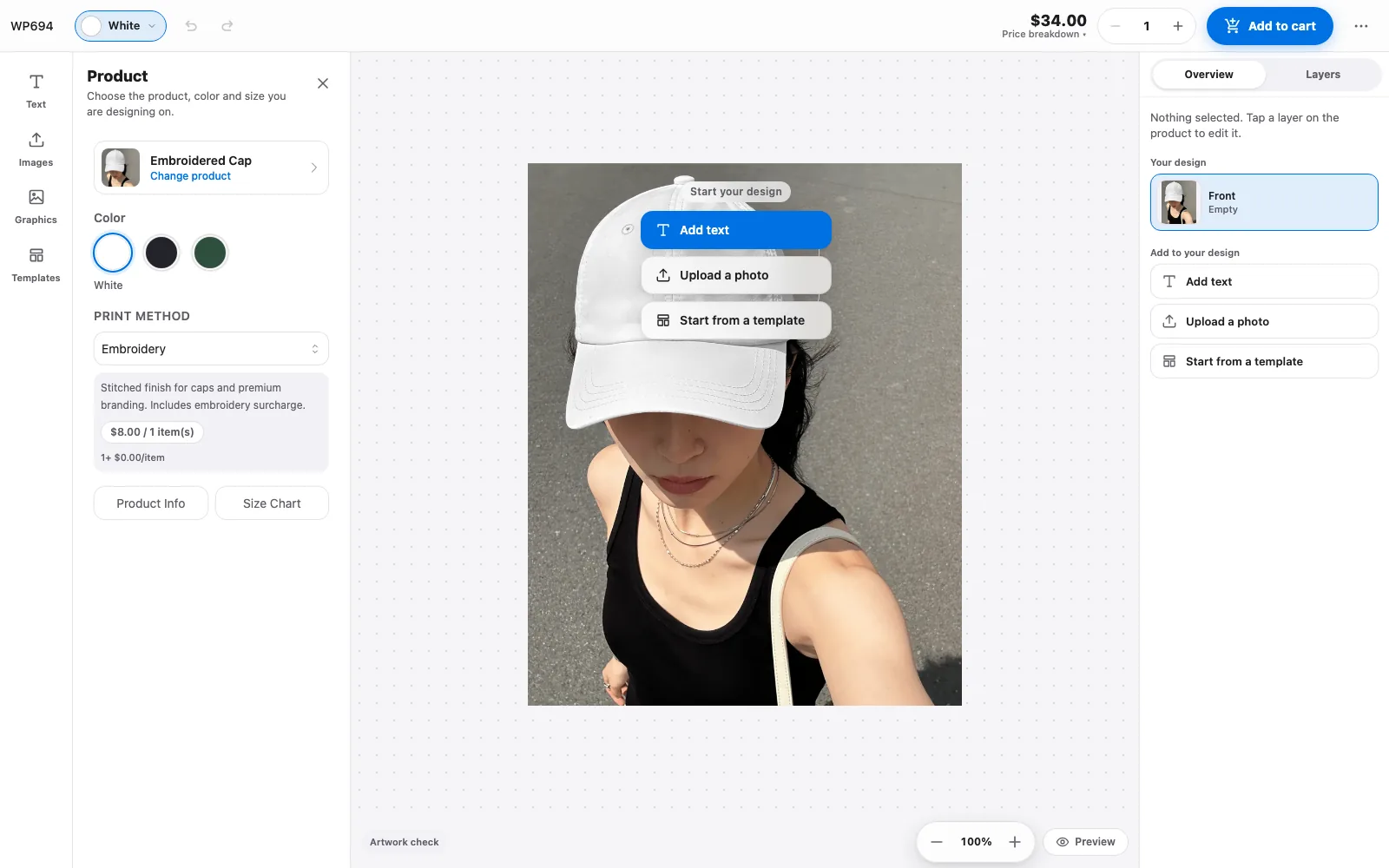
Printing & Pricing is the base pricing catalog for your WooCommerce shop: define printing methods (DTG, DTF, screen print, and more), each with a setup fee and quantity-tier prices, and show customers the price of each method in the designer's printing picker.
It's the foundation other pricing addons build on — Dynamic Pricing declares Printing & Pricing as a required addon and layers size, colour and quantity rules on top of the catalog this addon manages, and Embroidery Pack's printing method plugs into the same catalog as a production pack.
How to enable Printing & Pricing
-
Buy the addon
Your Polar purchase email (and the Polar customer portal) contains the addon ZIP.
-
Upload it in the Veyo Apps screen
Open Veyo → Extensions and upload the ZIP. Veyo verifies the package and installs it.
-
Enable it
Toggle Printing & Pricing on, then open Veyo → Pricing → Printing & Pricing to define your printing methods.
How to use Printing & Pricing
-
Define printing methods
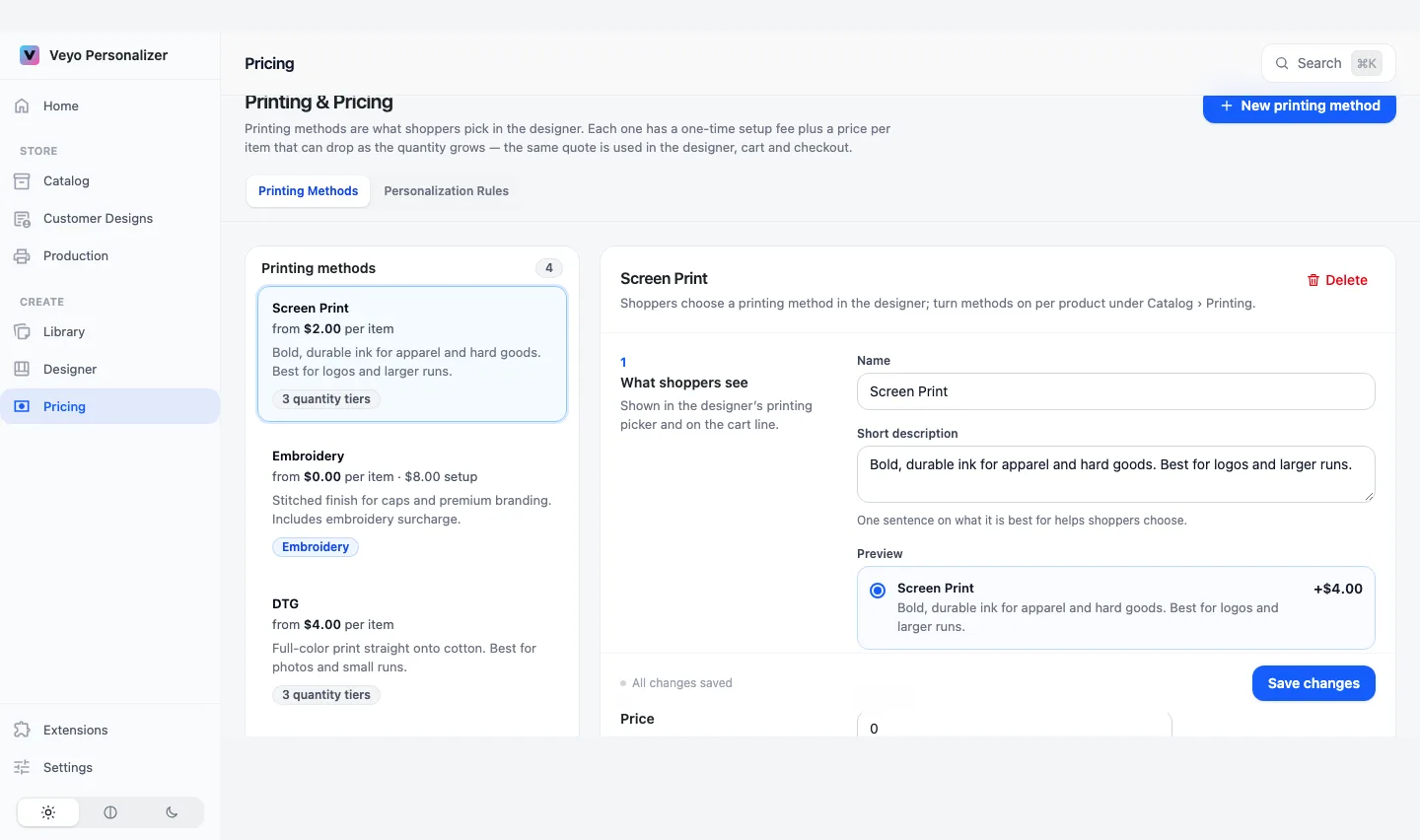
Click New printing method for each method your shop offers, or start from Screen printing, DTG printing, Embroidery or Sublimation when the list is empty.
-
Set the price and turn methods on per product
Give each method a Setup fee and quantity tiers. Then, for each product, switch on the methods it offers under Catalog → product → Printing.
-
Customers see the price per method
The designer's printing picker lists the enabled methods with their name, short description and price per item. The cart and checkout use the same quote.
At a glance
| Item | Details |
|---|---|
| Version | 1.0.7 |
| Platforms | WordPress, OpenCart, PrestaShop and Shopware. It is an admin screen on the shared Veyo API. |
| Requires | Veyo Product Personalizer 1.0.1 or later. No other addon is required. Dynamic Pricing requires this addon. |
| Where settings live | Veyo → Pricing → Printing & Pricing, on the Printing Methods tab. Addons such as Dynamic Pricing add their own tabs next to it. |
| Server tools / outside services | None. |
What shoppers see
In the designer, each method you enabled on the product appears in the printing picker with its Name, Short description and a price per item (for example "+$8.00"). The same name appears on the cart line. Shoppers never see the setup fee breakdown fields, the code or the production pack. Methods appear in the order of their Position in shopper list, lowest number first.
Settings
Select a method in the list on the left, or click New printing method, then use Create printing method or Save changes. Discard reverts unsaved edits.
| Setting | Default | Range / options | What it does |
|---|---|---|---|
| Name | Empty (required) | Text, keep under 80 characters | Shown in the designer's printing picker and on the cart line. |
| Short description | Empty | Text | One sentence on what the method is best for. A live Preview shows how the choice looks. |
| Setup fee | 0 | 0 or more | Charged once per cart line whatever the quantity (screens, digitizing). 0 means none. |
| From quantity / Price per item (quantity tiers) | One tier: from 1, price 0 | From quantity 1 or more; price 0 or more; Add quantity tier adds rows, at least one tier is kept | Total = setup fee + price per item × quantity, where the price per item comes from the highest tier the quantity reaches. The Try a quantity calculator shows the result. Printing only: the product price and design extras (text, images, clipart) are added on top. |
| Production pack | None — regular print file | Packs offered by installed addons, for example Embroidery | Adds method-specific preview, checks and production files. Shown only when an installed addon provides a pack. |
| Code | Generated from the name | Read-only; Copy button | Stable ID used in exports and integrations. It is set when the method is created and cannot be changed afterwards. |
| Position in shopper list | Number of existing methods | 0 or more | Lower numbers appear first. |
The editor warns you about tier problems: a tier starting below 1, two tiers with the same starting quantity, no tier starting at 1, or a higher quantity costing more per item than a lower one. A method with no price shows a No price set badge in the list.
What you get in orders and production
- The method on the order. The chosen method travels with the personalized line, and its code is used in exports and integrations. See Orders & production files.
- One quote everywhere. The designer, cart and checkout use the same price calculation (setup fee plus tier price × quantity).
- Production packs. Linking a method to a pack, such as Embroidery Pack, gives it method-specific preview, checks and production files.
- Print Queue routing. Print Queue sends each job to the first station that lists its print method, using the methods defined here.
- Dynamic Pricing. Dynamic Pricing requires this addon: it adds size- or colour-based charges on top of these base prices.
Data and privacy
- Database table (WordPress):
{prefix}veyop_printingsholds your methods, prices and tiers. The addon has no options or files of its own. - Outside services: none.
- Shopper data: none. The addon stores only the catalog you enter.
- Uninstalling the addon removes the screen and keeps your methods, so reinstalling restores them. Uninstalling the whole of Veyo with Keep data when uninstalling off deletes every
veyop_*table, including this one. See Uninstalling & your data.
Troubleshooting
- Shoppers do not see a method in the designer. Turn it on for the product under Catalog → product → Printing. Creating a method does not enable it everywhere.
- The price shows 0 or the method has a "No price set" badge. Every tier price and the setup fee are 0. Enter a price per item in the first tier.
- "Printing code cannot be changed after creation" or "A printing method with this generated code already exists". The code is locked once created and must be unique. Create a new method with a different name instead.
- The price jumps unexpectedly at some quantity. Check the tiers: the highest tier whose starting quantity is reached sets the price per item. Fix any warning shown under the tier table.
- Deleted a method by mistake. Products using it no longer offer it. Recreate it with the same name; the generated code will match, but you must turn it on again per product.
FAQ
Do I need Dynamic Pricing too?
Only if you want extra rules such as size bands, price per m² or screen setup per colour. Printing & Pricing alone is enough for per-method setup fees and quantity tiers. Dynamic Pricing needs Printing & Pricing installed.
Can each product have different printing types available?
Yes. You define the methods and their prices once, then turn on the ones each product offers under Catalog → product → Printing.
Installing, updating and removing
- Install: upload the ZIP in Extensions, then enable it. See Install addons.
- Update: upload the newer ZIP over the old one. Settings and data are kept. See Upgrading.
- Remove: Uninstall on the addon card removes its files and keeps its data, so reinstalling restores everything. See Uninstalling & your data.