Home › Docs › Addons › Print Preflight

Print Preflight
$15 DPI, bleed, safe-zone, and contrast checks in the designer, admin, and export gates.
Platforms: WooCommerce, OpenCart, PrestaShop & Shopware 6. Version: 1.1.6.
Every purchase is a single signed, install-ready ZIP that also includes full TypeScript/Vue source, sourcemaps, and build tooling (npm ci && npm run build) if you want to customize it yourself. Installs and updates through the in-app addon marketplace.
What Print Preflight does
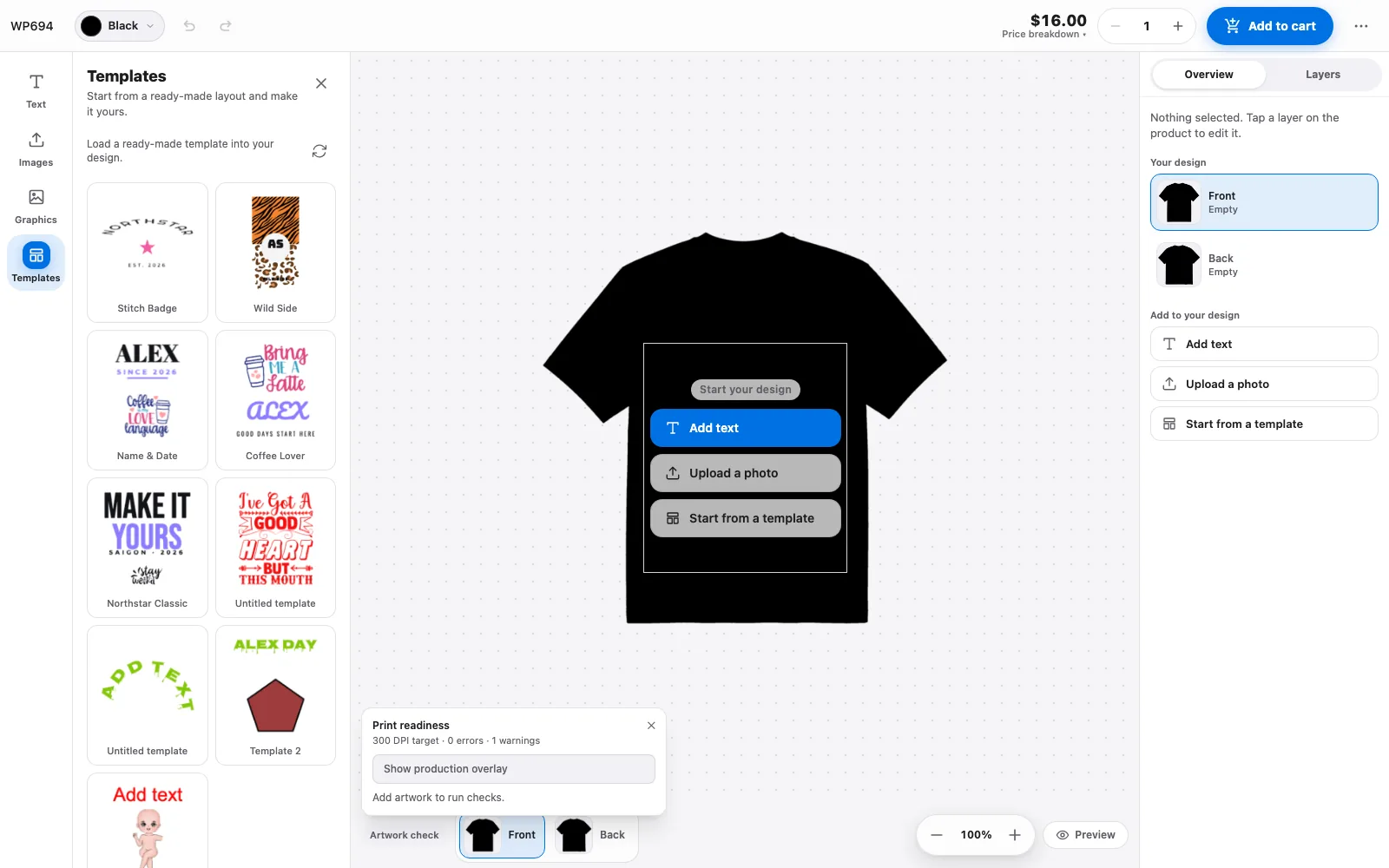
Print Preflight runs automated production-readiness checks — minimum DPI, bleed, safe zones, exclusion zones, minimum text size, and garment-color contrast — surfaced live while the customer designs, reviewable in the admin, and enforced as server-side gates before export and before add-to-cart on your WooCommerce product pages.
Because the gates are enforced server-side, a design that fails your minimums can't reach production even if the customer ignores every warning in the browser. Thresholds — minimum DPI, bleed, safe zones — are configurable to match your printer's requirements rather than a generic default.
How to enable Print Preflight
-
Buy the addon
Your Polar purchase email (and the Polar customer portal) contains the addon ZIP.
-
Upload it in the Veyo Apps screen
Open Veyo → Extensions and upload the ZIP. Veyo verifies the package and installs it.
-
Enable it
Toggle Print Preflight on, then tune thresholds (minimum DPI, bleed, safe zones) from its settings if your shop needs different defaults.
How to use Print Preflight
-
Customer designs as usual
Live warnings appear directly in the designer if an element is below the minimum DPI, too close to the bleed or safe zone, or too small to print legibly.
-
Review in the admin
On each product, the Print readiness panel in the product editor shows the rules that apply and lets you draw no-print zones on the canvas, so you can set up the checks before customers design.
-
Server-side gate
With the Block critical errors setting, add-to-cart and staff print-file export are checked again on the server against your configured minimums, so error-level problems cannot slip through by ignoring the browser warning. With Warn customer or Allow checkout, shoppers can continue. See Settings.
At a glance
| Version | 1.1.6 |
|---|---|
| Platforms | WordPress, OpenCart 3 & 4, PrestaShop 8 & 9, and Shopware 6.6 / 6.7. Since 1.1.2 with Veyo 1.6.1, the export gate, staff override and audit log run on every platform. |
| Requires | Veyo Product Personalizer 1.9.1 or later. No other addon is required. |
| Where settings live | Veyo → Settings → Print readiness, with three tabs: Checks, Equipment profiles and Color output. Each product also has a Print readiness panel in the product editor. |
| Server tools / outside services | None for the layout and DPI checks. The Color output tab prepares CMYK and PDF/X, which need librsvg (rsvg-convert), ImageMagick and Ghostscript on the server. All of these run through PHP exec(); if your host disables it you can still export by hand: the Download PNG button on the order’s production page renders the file in your browser instead, at 300 DPI. Nothing is sent to outside services. |
What Preflight does and does not do. Preflight validates artwork layout and image resolution (DPI, margins, bleed, no-print zones, text size, contrast). It does not convert colour and it does not create CMYK TIFF or PDF/X files. Those files are produced by Print Queue when you enable Generate real production files (CMYK TIFF / PDF-X) and the server tools are installed. The Color output tab here only holds the ICC profiles and a setup checklist for that pipeline.
What shoppers see
- Artwork check panel. A Print readiness panel in the designer (shown while Show artwork check in designer is on). Its pill reads Artwork check, Ready to print, Fix artwork (Fix before checkout when blocking) or Needs attention, followed by the number of warnings.
- Plain-language issues. For example This photo may print blurry, Part of your design is outside the print area, Too close to the edge, Background does not reach the edges, Covers an area that cannot be printed, Text is very small, Hard to see on this product color and See-through layer. Many have a one-click fix, and a Fix all button applies them together.
- Missing text effects. If Typography Pro is turned off, a text layer that uses its effects gets the warning "Text effects on this layer are not available right now and will not be printed." The layer still prints as plain text.
- Production overlay. Show production overlay draws the TRIM and SAFE lines and your no-print zones on the canvas.
- At add to cart. With Block critical errors, an error-level problem stops add-to-cart with the message "This design has unresolved print-readiness errors. Fix the flagged artwork and try again."
Settings
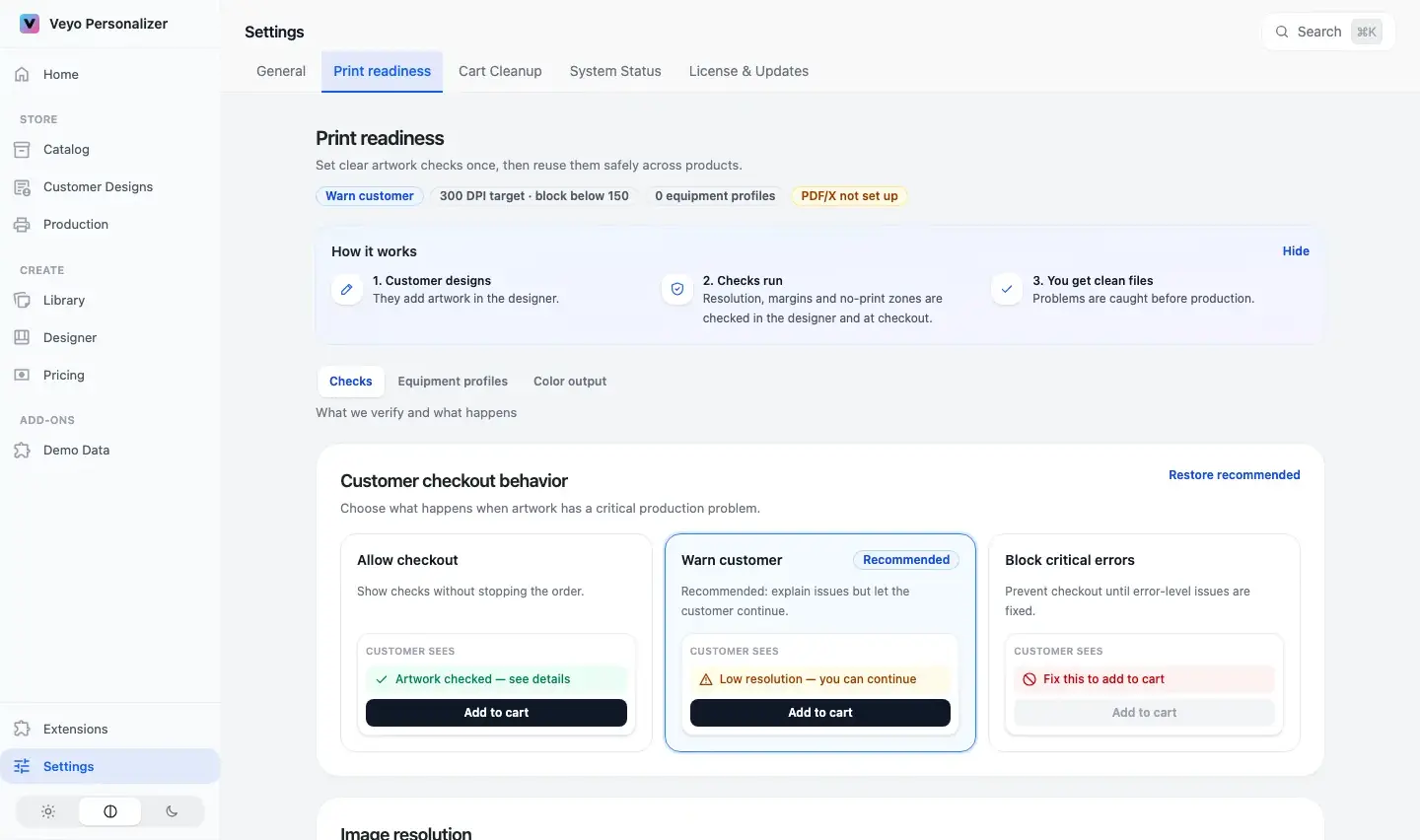
Open Veyo → Settings → Print readiness. Changes are saved with Save changes (or Ctrl/Cmd+S) in the bar that appears; Discard drops them. A Restore recommended link on the Checks tab resets the checks to the recommended values.
Checks tab
| Setting | Default | Range / options | What it does |
|---|---|---|---|
| Customer checkout behavior | Warn customer | Allow checkout, Warn customer, Block critical errors | What happens when artwork has an error-level problem. Allow shows the checks without stopping the order; Warn explains the issue but lets the customer continue; Block prevents checkout until errors are fixed. |
| Target resolution | 300 DPI | 1 or more (presets: Web / screen 150, Standard print 300, Fine art 300) | Images below this show a quality warning. |
| Block below | 150 DPI | 1 or more; cannot exceed the target | Images below this are critical errors (presets use 72, 150 and 240). |
| Safe margin | 3 mm | 0 or more | Artwork crossing this distance from the edge gets a warning. |
| Bleed | 3 mm | 0 or more | Extra artwork beyond the trim edge. Used for the bleed check on Full bleed and Wrap / die-cut products. |
| Smallest text | 6 pt | 0 or more; 0 disables the warning | Text printing smaller than this gets a warning. |
| Show artwork check in designer | On | On / off | Lets customers see the issue list and the safe, trim and no-print overlays. |
These values are the shop defaults. In a product's Print readiness panel choose Use shop defaults or Customize product; customizing lets you set the product's own Artwork mode (Placed artwork, Full bleed, Wrap / die-cut), Checkout behavior, Target DPI, Block-below DPI, Safe margin (mm), Bleed (mm) and Smallest text (pt).
Equipment profiles tab
A reusable profile stores a measured output size and no-print zones for a piece of equipment (for example an 11oz mug). Click Add profile, or start from the example profiles (Example: 11oz mug and Example: 15oz mug), which are only starting points: measure the real blank before using them. Applying a profile to a product (Preview & apply, for the active view or all views) copies a snapshot, so later edits never change existing products; the product panel shows Update available and Review update when a profile has changed.
| Setting | Default | Range / options | What it does |
|---|---|---|---|
| Profile name, Shop note, Profile ID | Required name and unique ID | Text | Labels the profile. IDs must be unique. |
| Output width / Output height | None | Greater than 0 mm | The flat output size the artwork is checked against. |
| Print mode | Placed artwork | Placed artwork, Full bleed, Wrap / die-cut | Placed keeps artwork inside the printable area; full bleed runs to the edge; wrap goes around a shape such as a mug. |
| Target DPI / Block-below DPI | 300 / 150 | 1 or more; block-below cannot exceed target | Resolution thresholds for this equipment. |
| Safe margin / Bleed / Smallest text | Set per profile | 0 or more | Same meaning as on the Checks tab. |
| No-print zones | None | Type No print, Seam, Camera or Handle; severity Warn or Block; rectangles or polygons | Areas artwork must avoid. A Block zone is an error; a Warn zone is a warning. Up to 100 zones per view and 100 profiles. |
| Per-view overrides | Inherit | View width and height, mode, target DPI | Lets one view of a product differ from the profile. |
Color output tab
| Setting | Default | Range / options | What it does |
|---|---|---|---|
| RGB input profile | System sRGB fallback | An .icc or .icm file | Profile for designer artwork. Suggested: sRGB IEC61966-2.1 or sRGB2014. |
| CMYK press profile | No shop CMYK profile configured | An .icc or .icm file | The CMYK profile from your printer or RIP (for example FOGRA39/51 or GRACoL). Needed for CMYK TIFF and PDF/X. |
| Try an example profile | Not used | Download example or Use example | Bundled demo profiles for trying the pipeline. Replace the CMYK demo with your press profile before bulk production. |
| Black handling | K100 is marked recommended | Black ink only (K100) — recommended or Rich black (from ICC profile) | Applies to CMYK TIFF and PDF/X only. K100 keeps small black text sharp; rich black uses all four inks and is for printers who ask for it. |
| Setup checklist and Production capabilities | Read-only | RGB raster, CMYK TIFF, PDF/X: Ready or Missing | Shows whether the profile and server tools are in place. The checklist ends with turning on production files in Print Queue and checking the first PDF/X in your RIP (output is PDF/X-3 raster, text is flattened). |
What you get in orders and production
- A report with every design. The cart stores a print-readiness report (pass, warning or error, with the issues found). The server recomputes it from the submitted design rather than trusting the browser: empty design, low DPI, outside print bounds, outside safe area, insufficient bleed, exclusion-zone collisions and minimum text size are always re-checked.
- Export gate. Exporting print-ready files for a design whose status is error is stopped with a Print-ready export blocked page. A staff member can enter an Override reason and choose Record override and export. Each override is saved in an audit log (the latest 200 entries) with the reason, user, time and issue codes. Automated fulfillment, such as the Print Queue renderer, is not stopped by this screen (no operator is present to override), and applies its own policy.
- With Embroidery Pack. If Embroidery Pack is installed, its stitch checks are added to the same report on the server.
- Clean files downstream. Pair it with Print Queue for CMYK TIFF and PDF/X output, and see Orders & production files.
Data and privacy
- Settings stored:
veyop_preflight_settings(checks and equipment profiles),veyop_print_output_icc_settings(ICC profile settings) andveyop_preflight_override_audit(the export override log). No tables of its own. Uploaded ICC profiles are saved in anicc-profilesfolder inside the Veyo uploads directory. - Outside services: none.
- Shopper data: checks run on the design the shopper submits; the addon stores no shopper information itself. The override log stores the staff user id and the reason typed.
- Uninstalling the addon keeps its settings and profiles, so reinstalling restores them. Uninstalling the whole of Veyo with Keep data when uninstalling off deletes every
veyop_*table and option. See Uninstalling & your data.
Troubleshooting
- I cannot save the settings. Block-below DPI cannot exceed the target DPI, and margin, bleed and text size must be zero or more. Equipment profiles need a name, a unique ID, and an output width and height above zero. The failing field is marked.
- The Color output tab says PDF/X not set up or Missing. Upload a CMYK press profile and install librsvg, ImageMagick and Ghostscript on the server (on Debian/Ubuntu:
sudo apt install librsvg2-bin imagemagick ghostscript). If the tab says PHP’sexec()is disabled, the tools cannot run even when installed: ask your host to allow it. Until then, the Download PNG button on the order’s production page renders the file in your browser instead, at 300 DPI. Then turn on Generate real production files (CMYK TIFF / PDF-X) in Print Queue. - Shoppers can still add a flagged design to the cart. Enforcement is on Warn customer (the default) or Allow checkout, or the product is customised. Choose Block critical errors in the shop defaults or in the product's Print readiness panel.
- A product reports "product print geometry is missing". The product's print area has no usable size. Set up the print area as described in Products & print areas.
- The artwork check does not appear in the designer. Check that Show artwork check in designer is on in the Checks tab.
FAQ
Can I change the minimum DPI or bleed requirements?
Yes, thresholds are configurable from the addon's settings to match your printer's requirements.
Can a customer bypass a preflight failure?
Not when enforcement is set to Block critical errors: the cart and export gates are enforced server-side, not just shown as a warning in the browser. With Warn customer (the default) or Allow checkout the customer can continue.
Installing, updating and removing
- Install: upload the ZIP in Extensions, then enable it. See Install addons.
- Update: upload the newer ZIP over the old one. Settings and data are kept. See Upgrading.
- Remove: Uninstall on the addon card removes its files and keeps its data, so reinstalling restores everything. See Uninstalling & your data.